Introduction
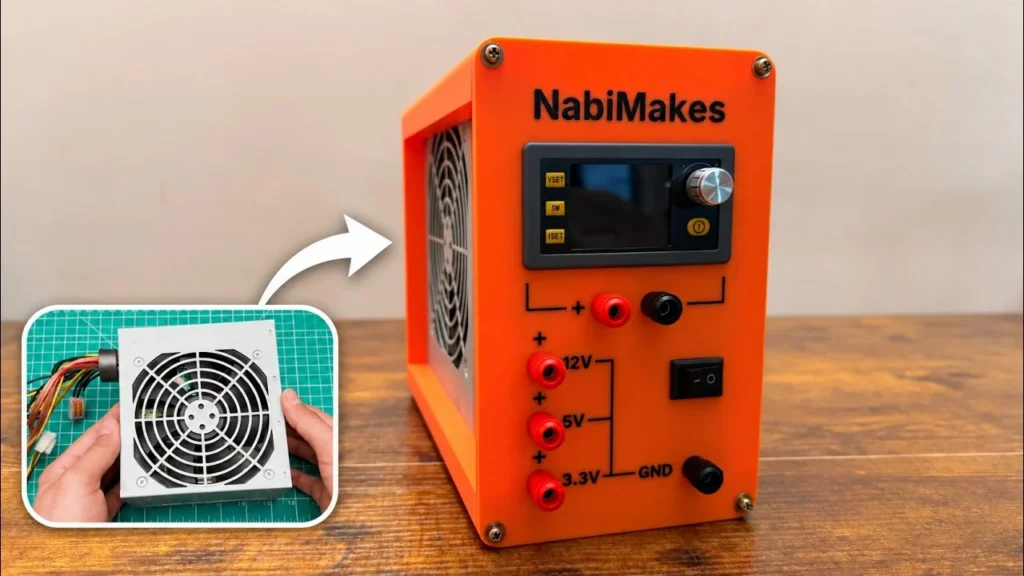
Every project I build needs power, and finding a supply with the right voltage and the right amps is never easy. So I built my own ATX bench power supply from an old PC power supply that had already done its time in another project. You can tell from the wires that it has been through things.
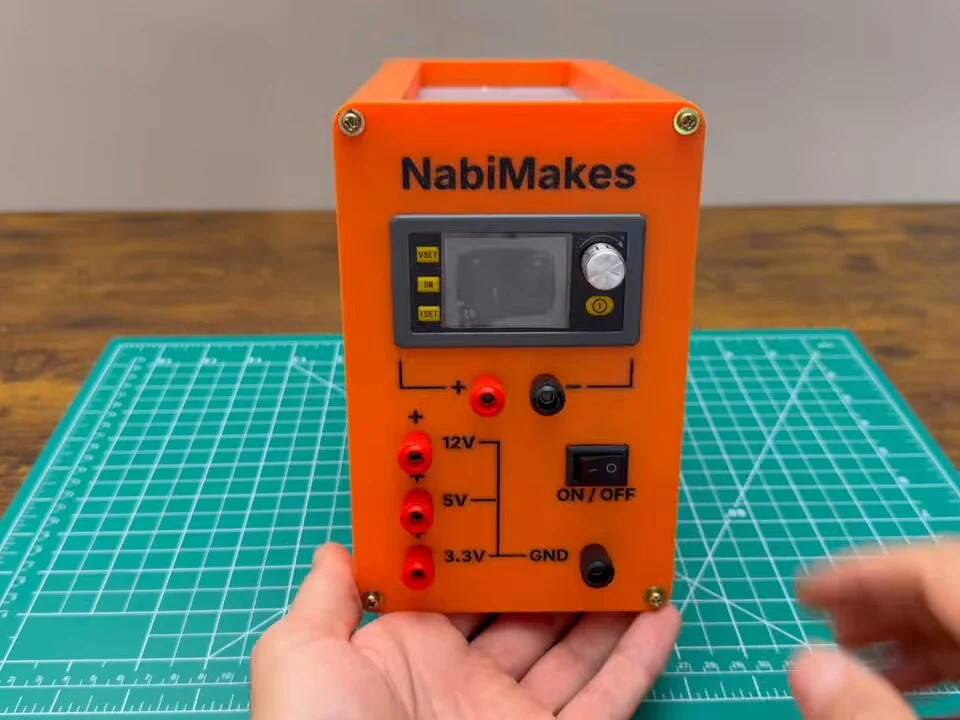
The finished supply has fixed 12 V, 5 V and 3.3 V outputs straight from the PC power supply, plus a variable output from an SK120 buck-boost module that goes from almost zero up to 24 V, with a current limit. All of it sits in a 3D-printed case that wraps around the original metal box.
The case came from a tool I wrote while building this: PSU Enclosure Studio. You enter your power supply and the parts you actually have, and it gives you a front panel, frame and back bezel that print flat without supports. More on that in the middle of this build. If you want a smaller, retro-style version, I also built a bench power supply from an old printer power supply.
 Watch the full build on YouTube
Full build · 7:56
Watch the full build
Every step, the mistakes and the first test, in one video.
Tools and materials
01 Tools
- Screwdrivers
- Pliers and wire cutters
- Digital caliper
- Multimeter
- Soldering iron (for the heat-set inserts)
- 3D printer
02 Materials
- Old ATX PC power supply
- SK120 buck-boost module (constant voltage / constant current, up to 24 V out)
- 4 mm banana jacks (binding posts), red and black
- Rocker power switch
- Brass heat-set inserts
- Screws salvaged from old printers
- Screw terminal blocks and hookup wire
- 3D-printed front panel, frame and back bezel from PSU Enclosure Studio
03 Consumables
- 3D printer filament
Build process
-
Step 1: Start with an old PC power supply
This ATX power supply already powered another project, and the wires show it. A PC power supply is a good base for a bench supply: it gives you solid 12 V, 5 V and 3.3 V rails, it has its own fan and protection, and most people have one lying around.
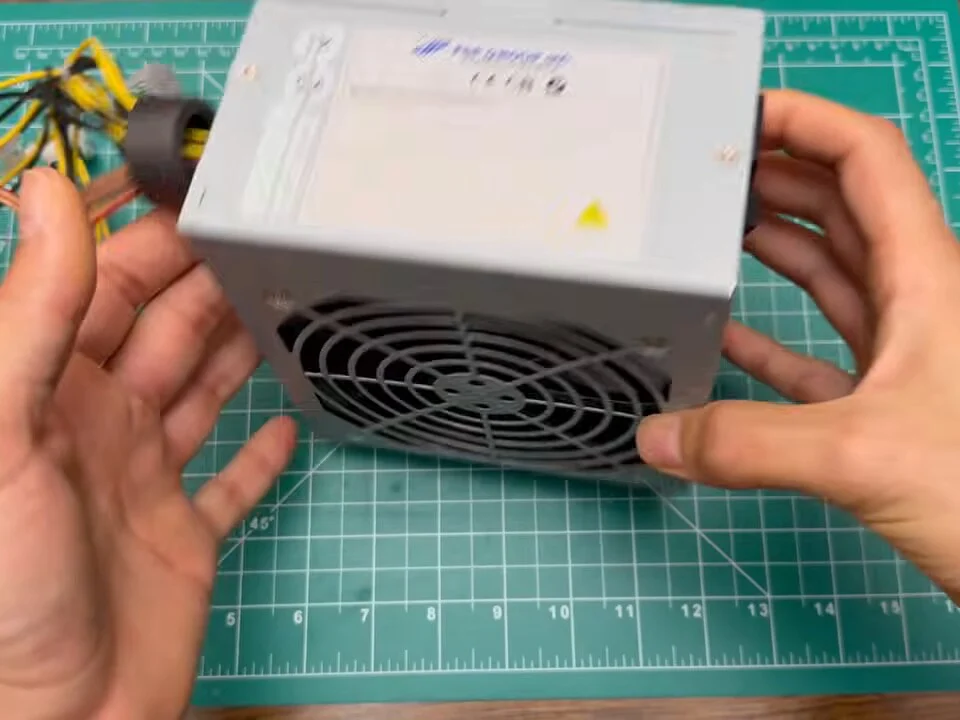
Fig. 01 -
Step 2: Open it up and clean it
Opening it up: wow, that is a lot of dust. Before anything else, it got a proper cleaning, the board, the heatsinks and the fan.
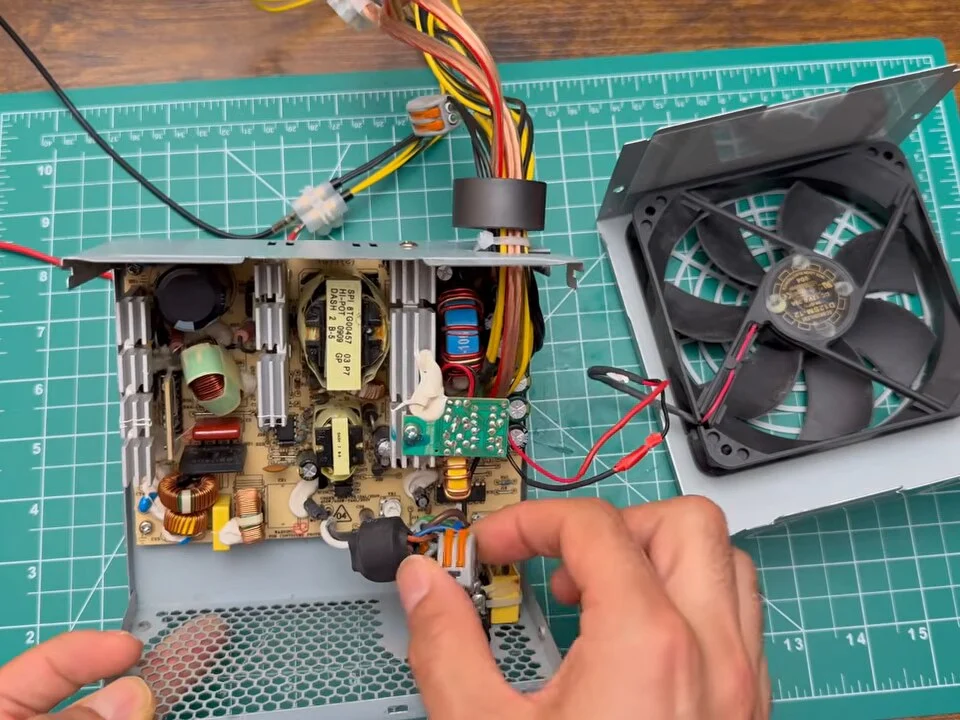
Fig. 02 Safety first
Unplug the power supply and let it sit before you touch anything inside. The big capacitors can hold a dangerous charge for a while after it’s switched off.
-
Step 3: Learn the wire colours
Here's the wiring. Green is the on/off signal. Yellow is 12 V, red is 5 V, orange is 3.3 V, and black is ground, shared by all the other voltages.
You only need a few of each colour, so this is the moment to decide which bundles you keep.
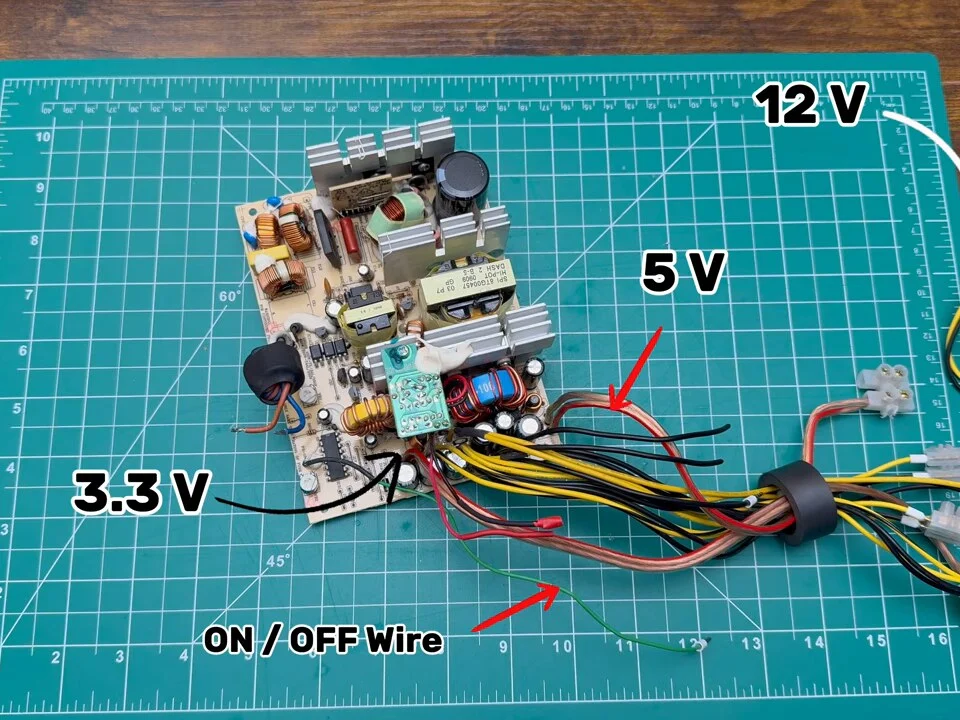
Fig. 03 -
Step 4: Cut the extra connectors
I cut off the extra connectors, the ones for drives and motherboards, cleaned up the remaining wires, and put the board back into its case.
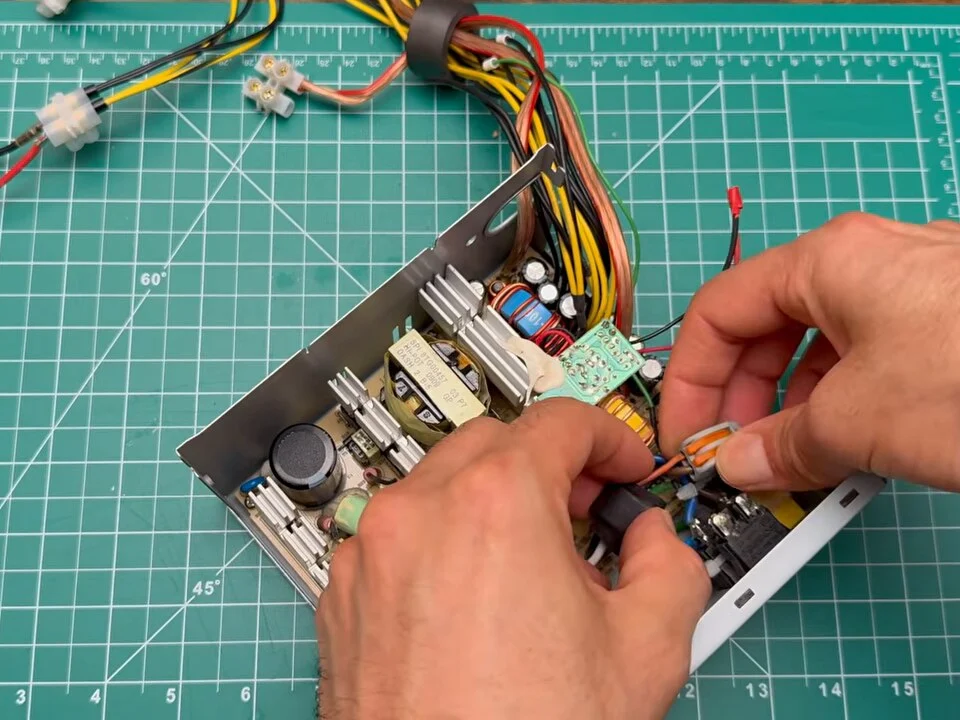
Fig. 04 -
Step 5: The green wire trick
Now a little trick: connect the green wire straight to ground and the power supply turns on. No computer needed.
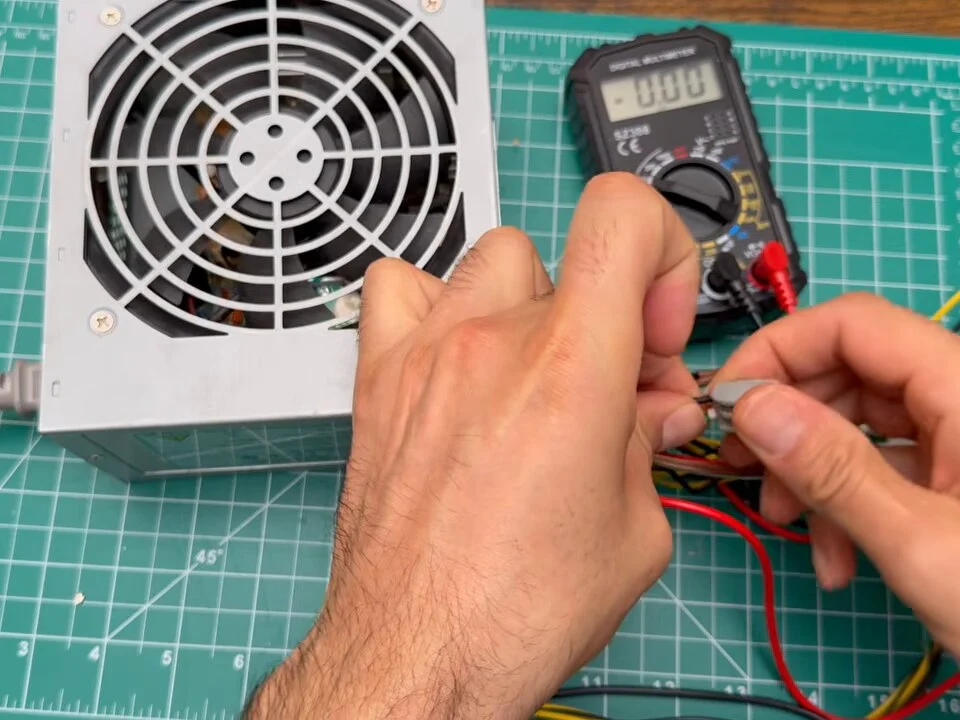
Fig. 05 -
Step 6: Check that every rail still works
With the supply running, I measured each rail with the multimeter: 12 V, 5 V, 3.3 V. Everything still works. Phew.
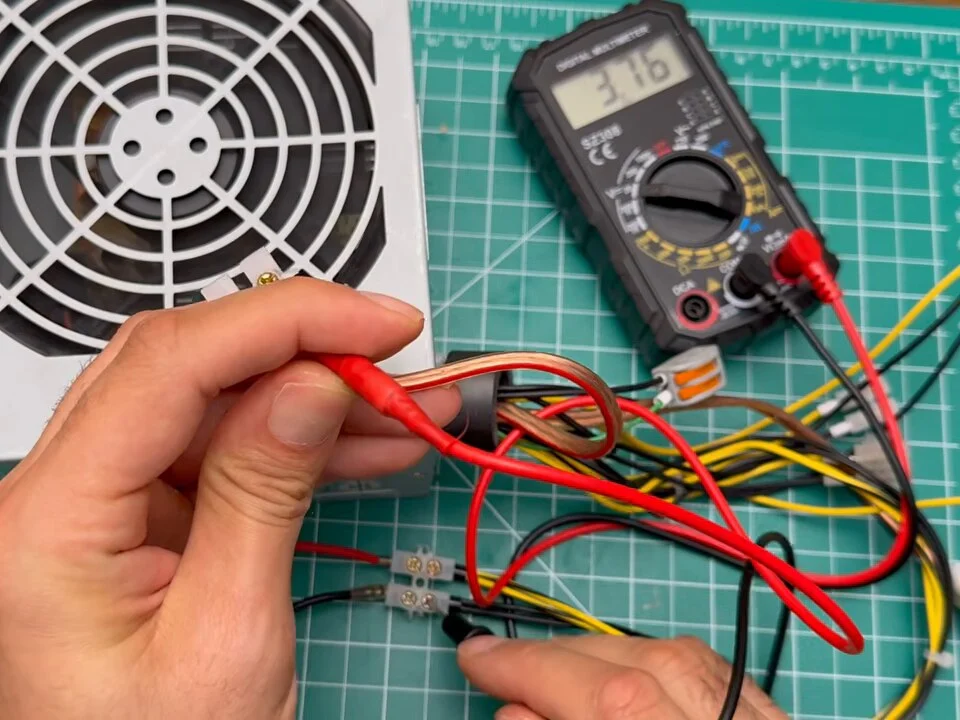
Fig. 06 -
Step 7: The SK120 module
Now the parts. This is the SK120 buck-boost module. It lets me set exactly the voltage I need and limit the current, so a mistake on the bench turns into a number on a display instead of a burnt part.
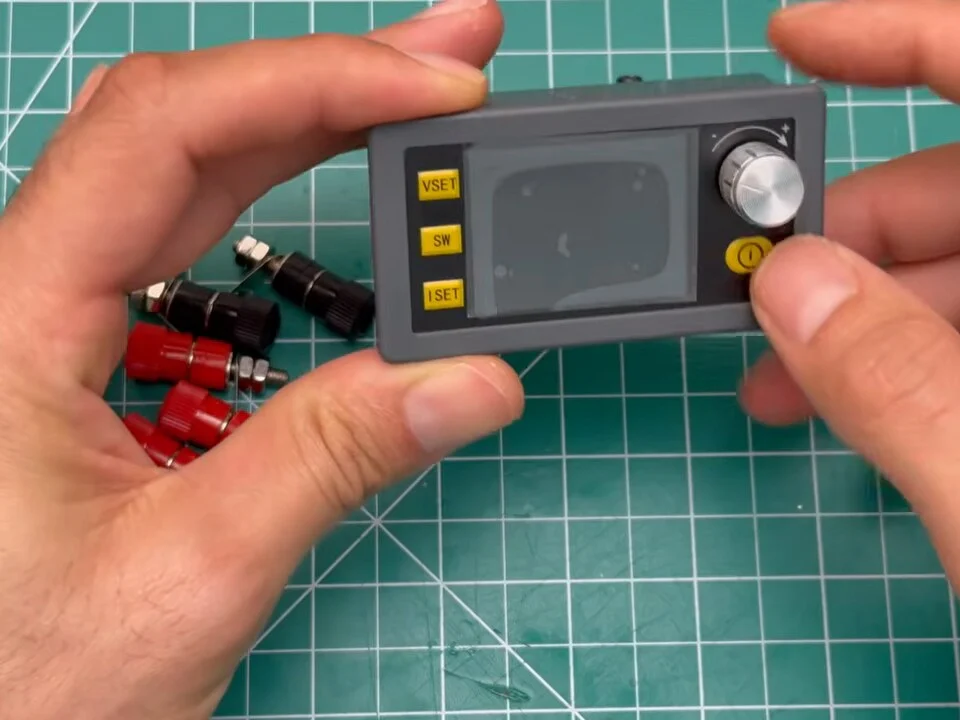
Fig. 07 -
Step 8: Banana jacks and a switch
Plus banana jacks for every output and a rocker switch to turn the whole thing on and off.
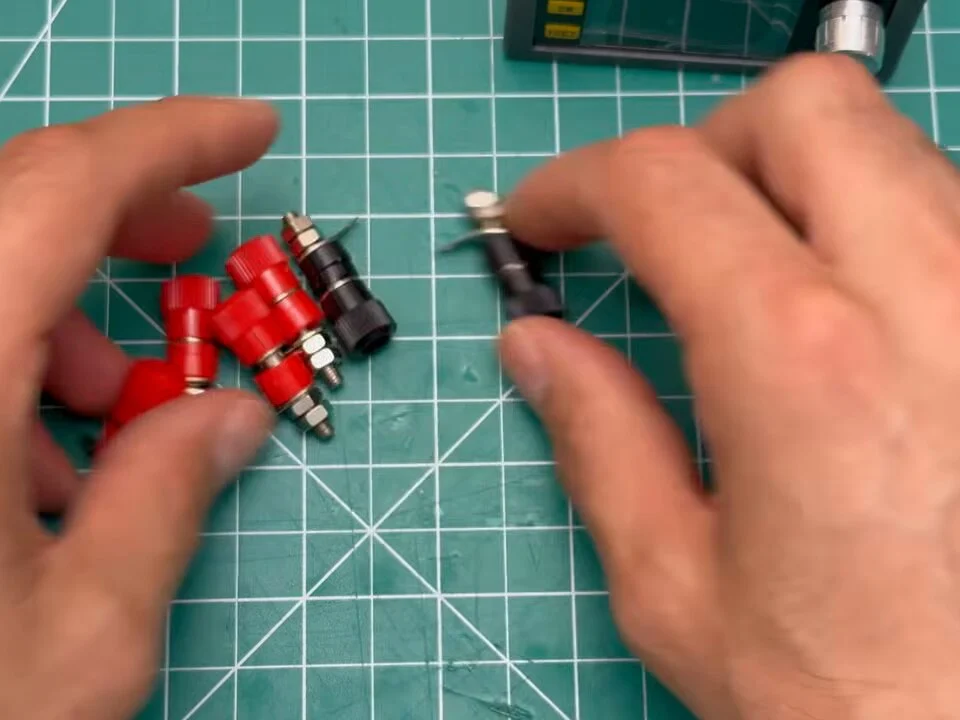
Fig. 08 -
Step 9: Measure every part
Then I measured every single part, because the front panel has to fit all of them: the module's cut-out, the jacks and the switch.
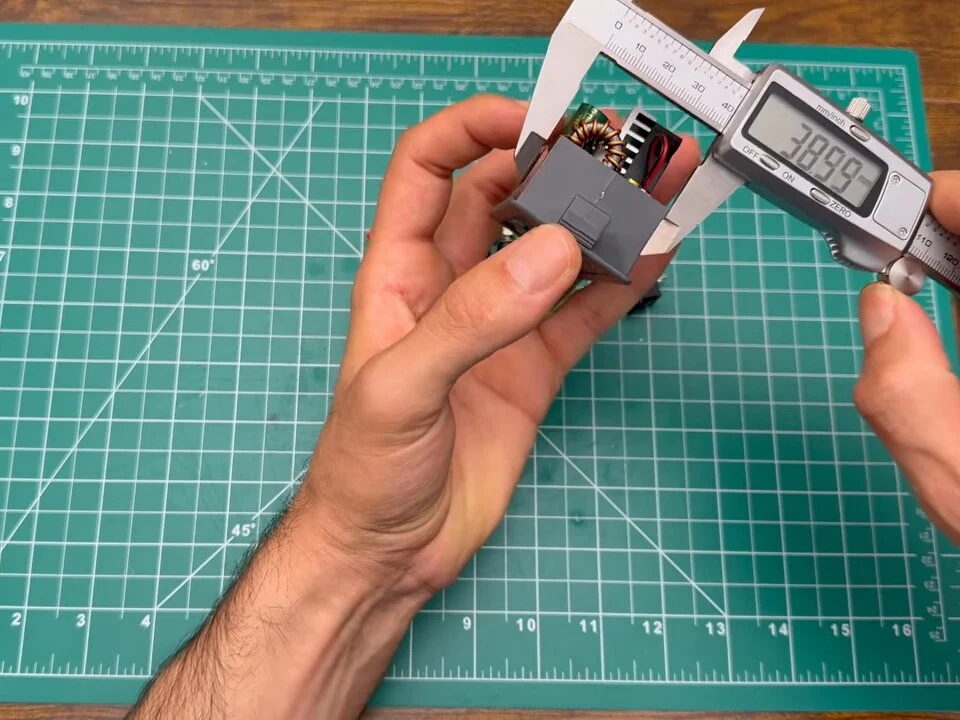
Fig. 09 Measure twice
Measure the real parts in your hand, not the listing. Modules with the same name can differ by a millimetre or two, and that is exactly what decides whether a panel fits.
-
Step 10: Why I wrote my own tool
While I was measuring, I was also coding something on the left. I searched for existing enclosure models first, but each one had its own limits: a different power supply size, a different module, parts I didn't have. So I built my own tool.
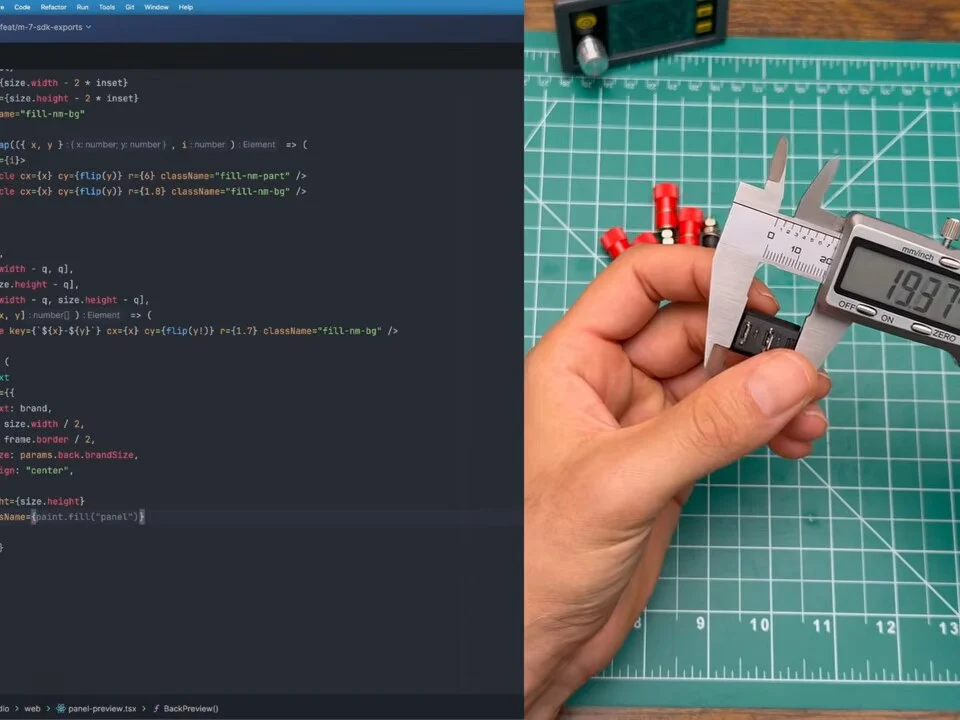
Fig. 10 -
Step 11: PSU Enclosure Studio: meet the tool
Meet PSU Enclosure Studio. It's free to design in, it runs in your browser, and you add or remove the components you actually have.
You start with your power supply: pick the ATX, SFX or SFX-L preset or type in its width, height and depth, and choose whether it stands upright or lies flat.
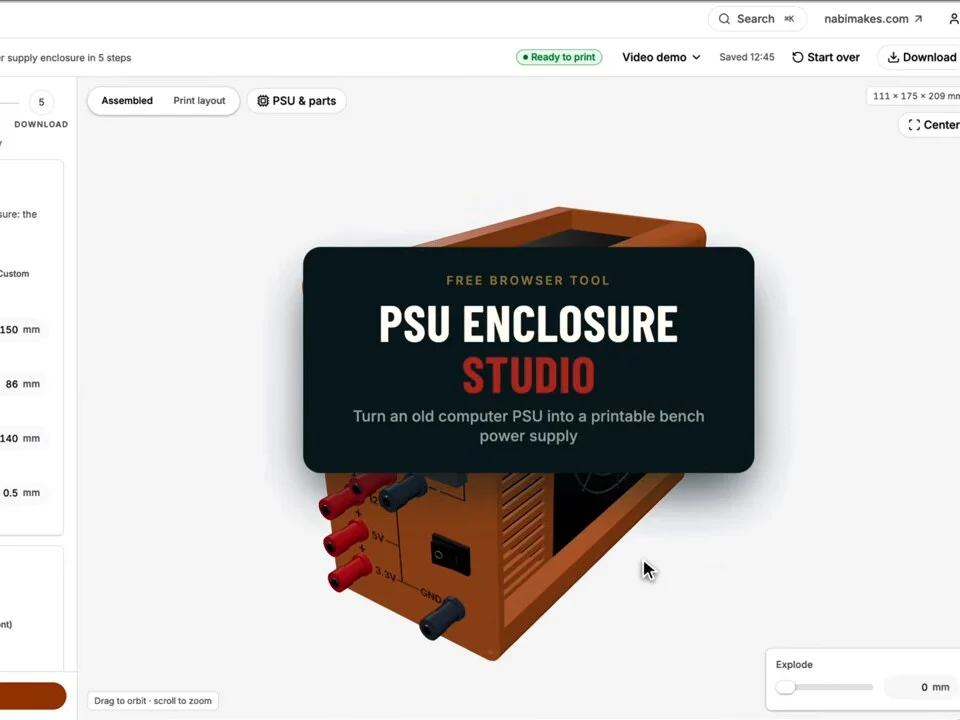
Fig. 11 Try it
PSU Enclosure Studio is at nabimakes.com/tools/psu-studio/. Designing, previewing and saving your enclosure are free; you need a free NabiMakes account.
-
Step 12: PSU Enclosure Studio: add your components
Next, lay out the front panel. Choose the variable module, here the SK120, the rails and their binding posts, and extras like a switch, USB chargers, an LED, a voltmeter or a fuse holder. The 3D preview updates as you go.
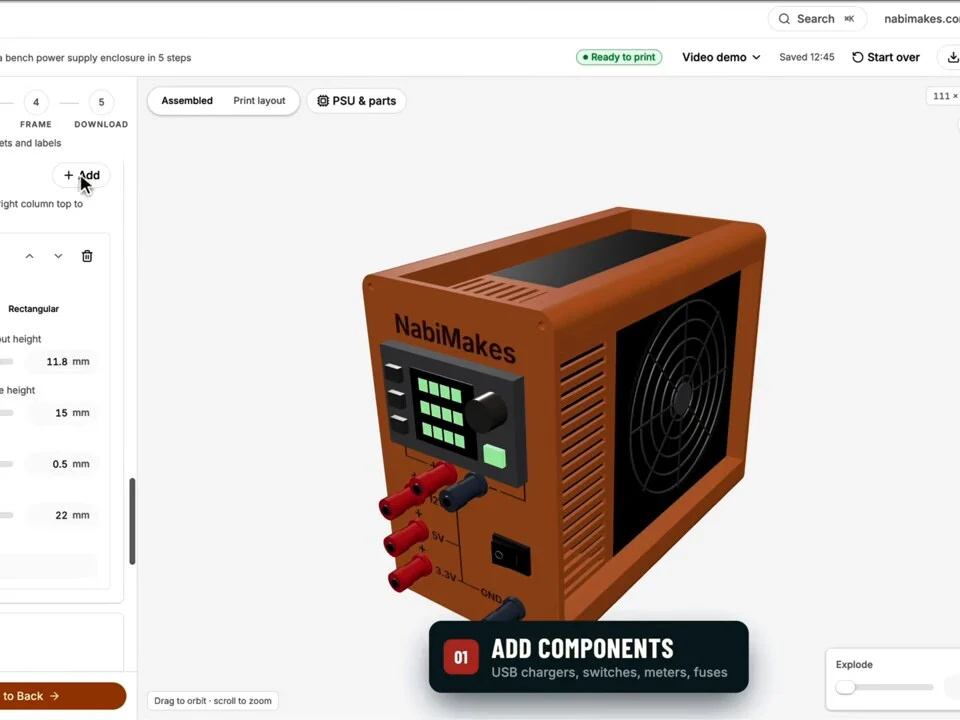
Fig. 12 -
Step 13: PSU Enclosure Studio: put your name on it
Put your own name on the front panel. The labels for each output are engraved right next to the jacks, so there's nothing to stick on later.
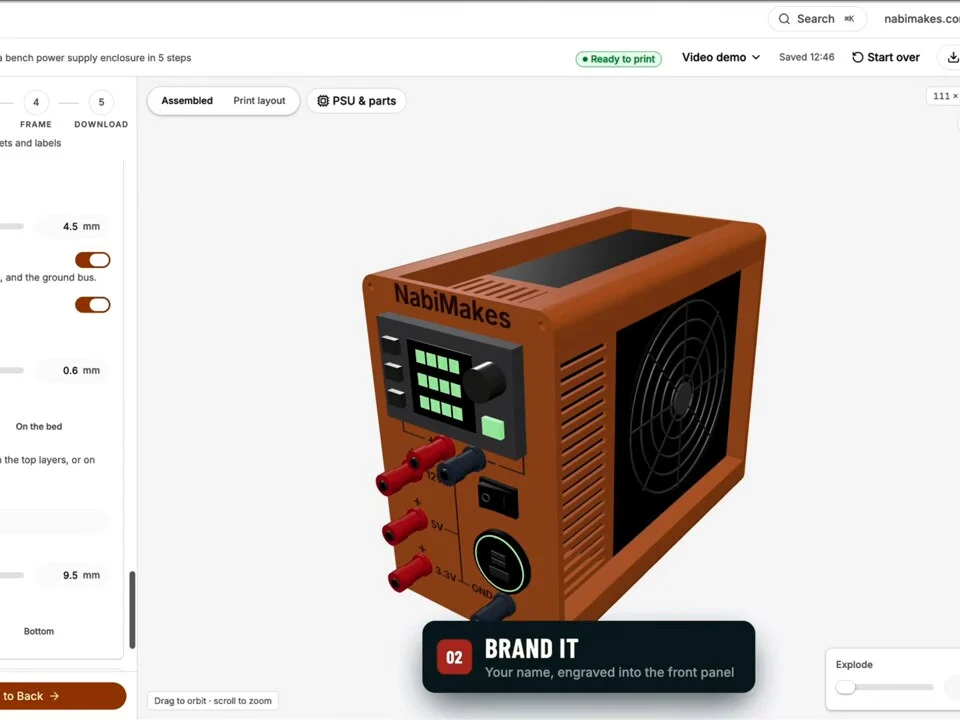
Fig. 13 -
Step 14: PSU Enclosure Studio: check the print layout
Check the print layout. Every part lies flat on the bed, so nothing needs supports.
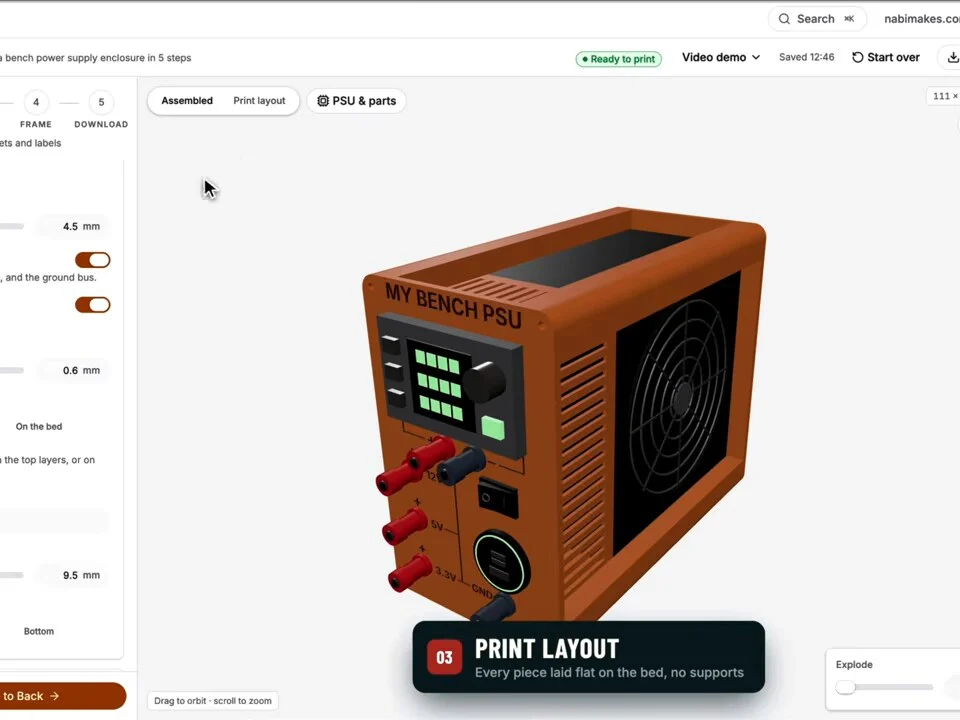
Fig. 14 -
Step 15: PSU Enclosure Studio: hide parts to look inside
Hide the power supply or the panels to look inside the frame and check the wiring space.
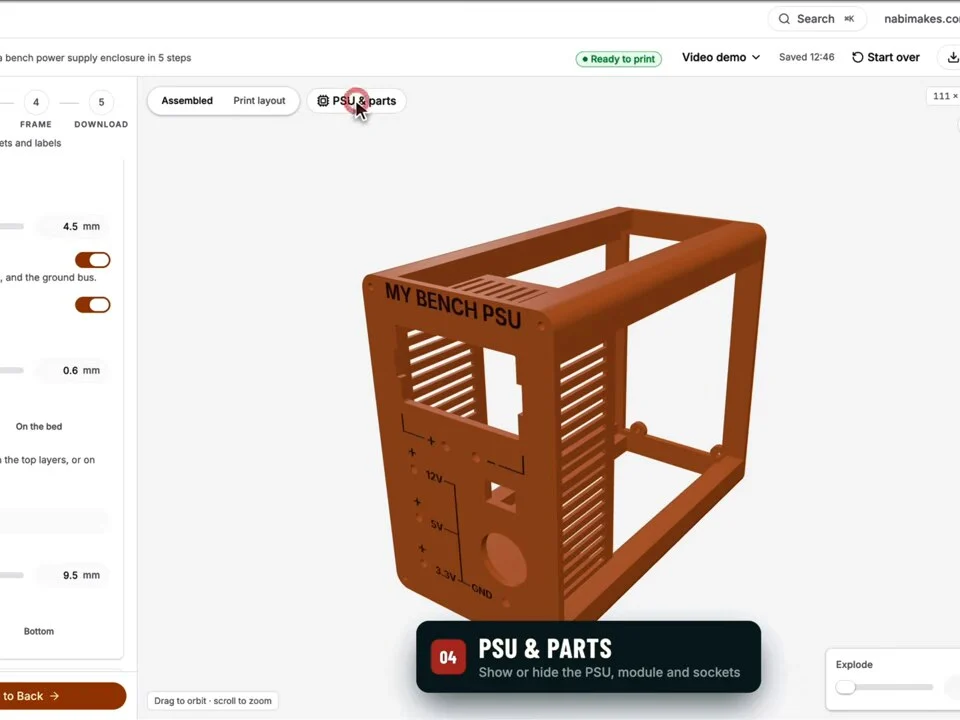
Fig. 15 -
Step 16: PSU Enclosure Studio: explode the enclosure
Or explode the whole thing to make sure every piece fits together before you print a single layer.
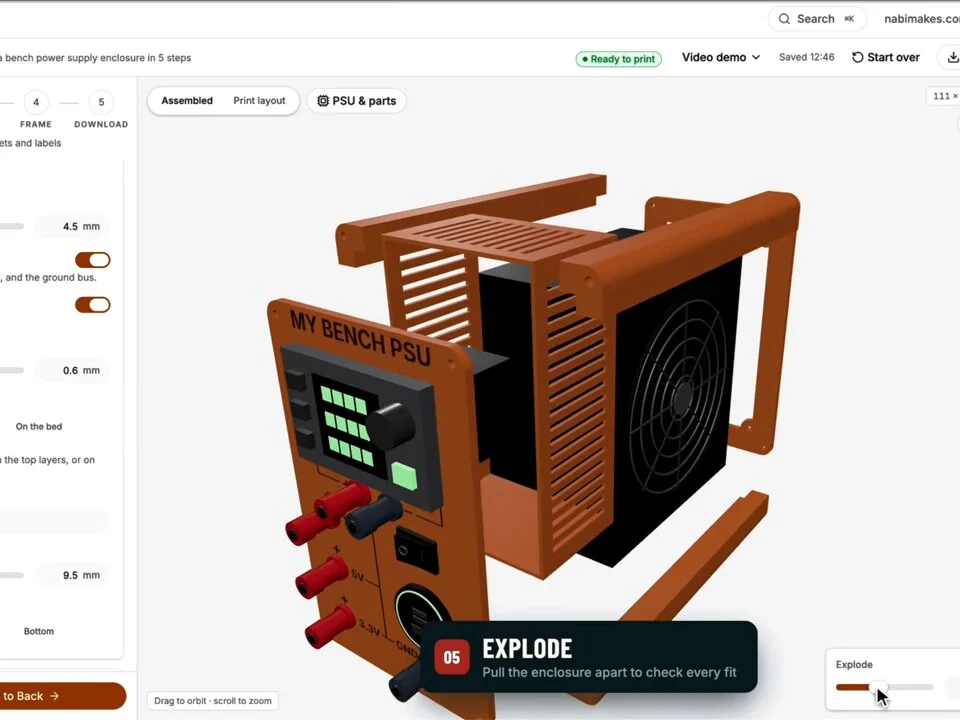
Fig. 16 -
Step 17: PSU Enclosure Studio: export and print
Export the STL files and print. You can download the front panel, the back bezel and the frame joins together or one at a time, which is handy when you only need to reprint one piece, as I found out next.
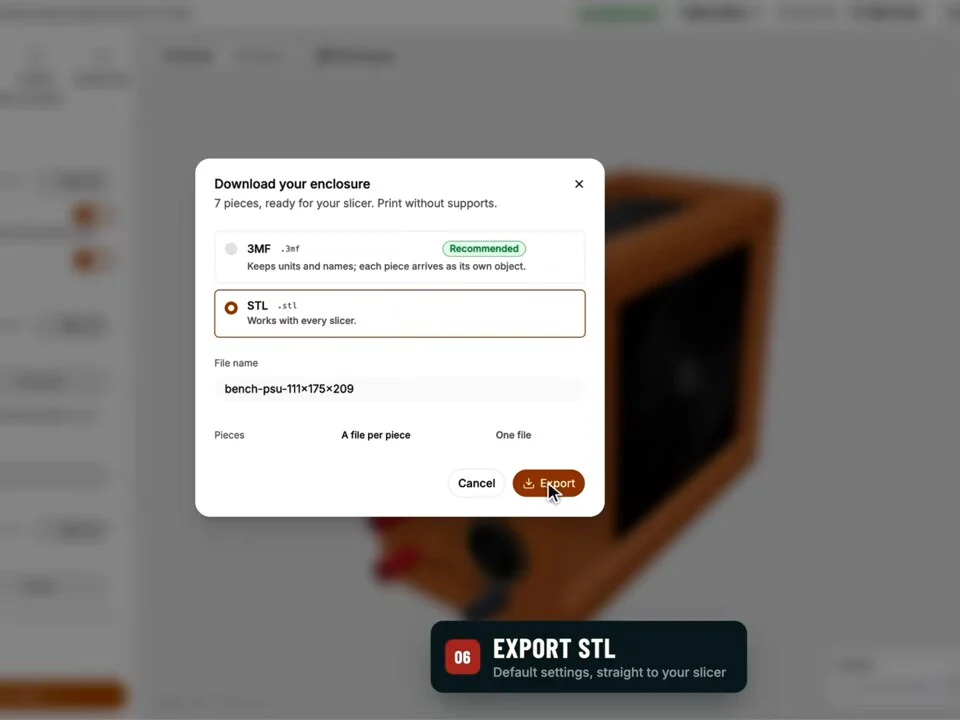
Fig. 17 -
Step 18: My old printer died printing this
This black panel is not a test print. My old printer died printing it. Rest in peace, buddy.
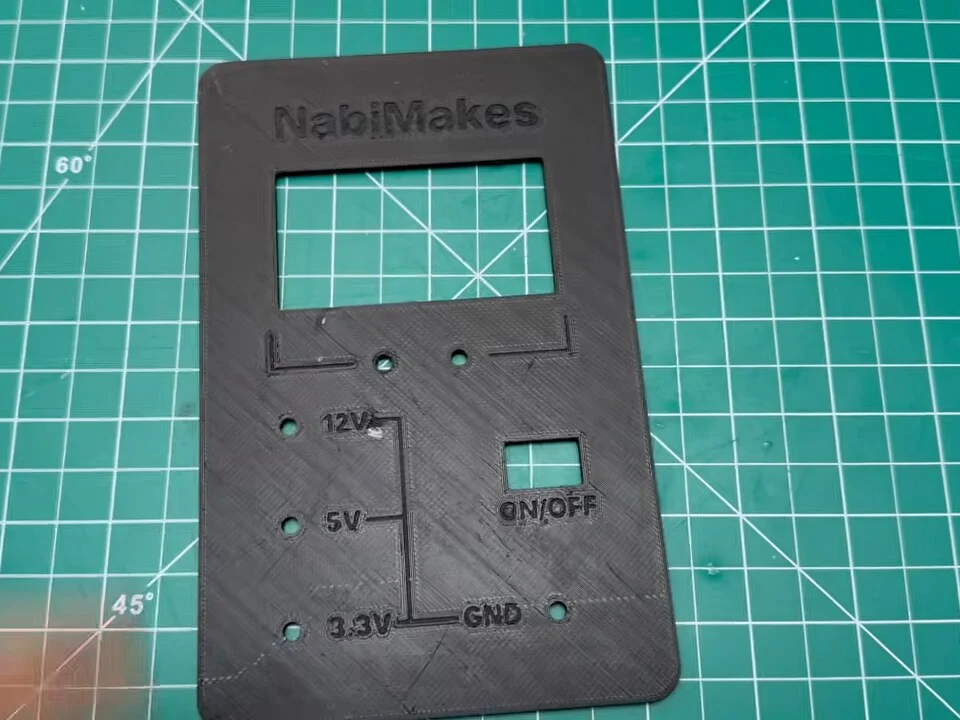
Fig. 18 RIP
The old printer gave up halfway through the front panel, so this one never got finished.
-
Step 19: A new printer
So I bought a new one, and the enclosure became its very first print.
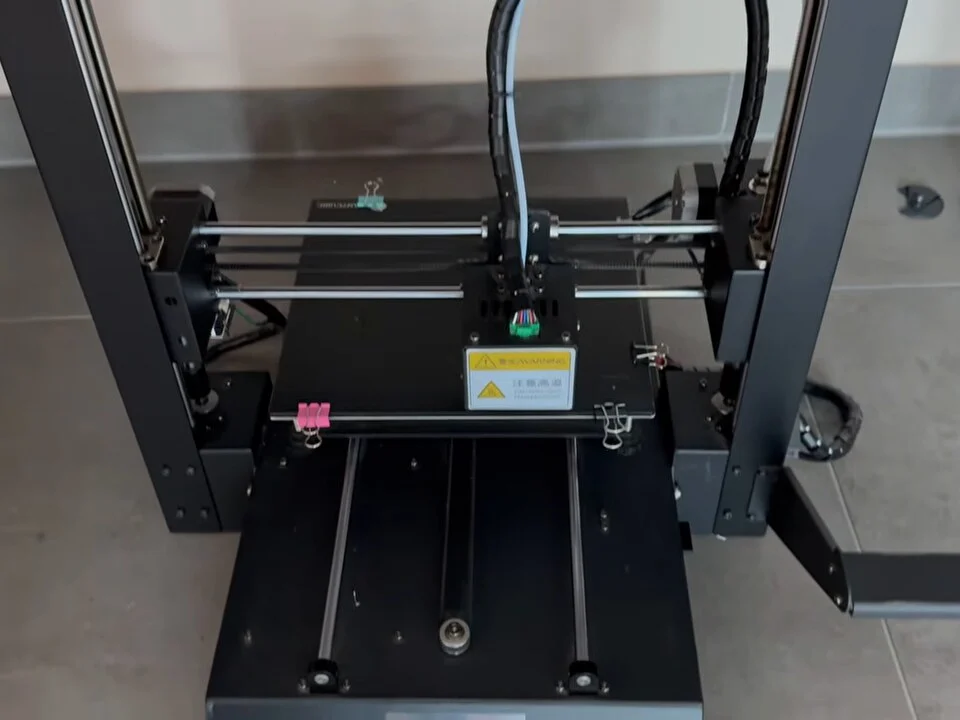
Fig. 19 -
Step 20: First prints
First print on the new printer: the front panel, the back bezel and the frame. Looks great.
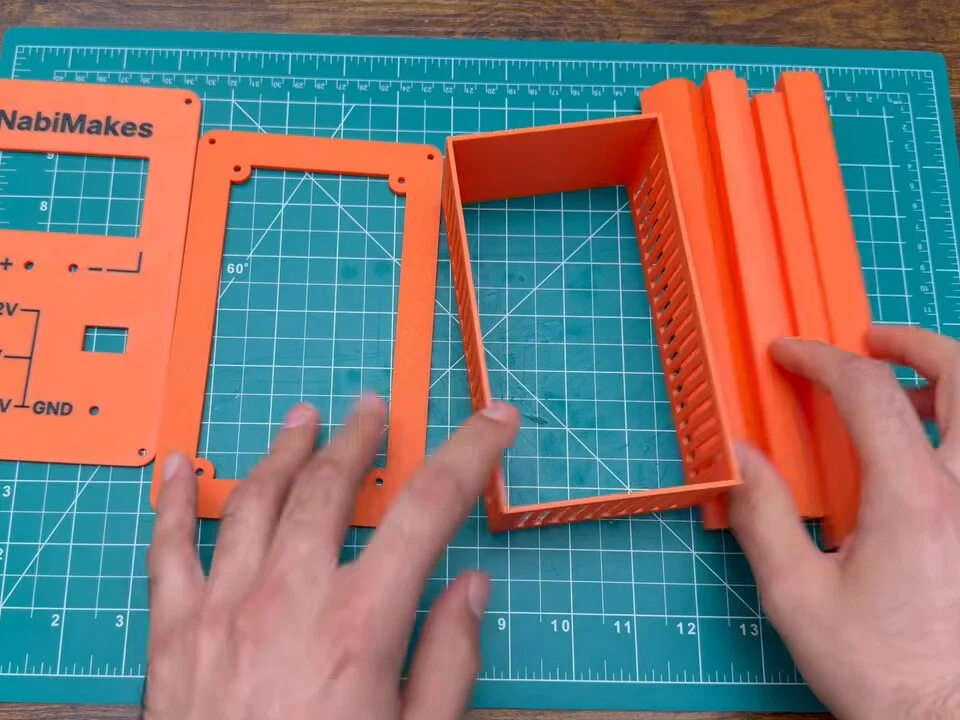
Fig. 20 -
Step 21: And the module doesn’t fit
And the module doesn't fit. Of course it doesn't.
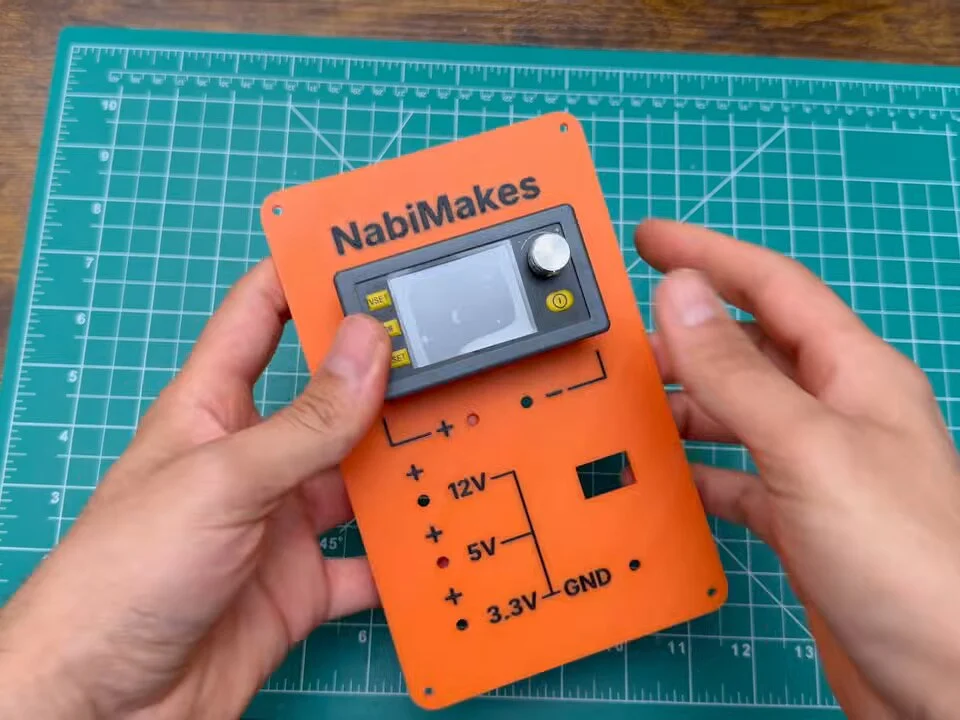
Fig. 21 Didn’t fit
The cut-out on the first panel was too tight for the module, so I reprinted only the front panel.
-
Step 22: Reprint the front panel
Reprint. Old one, new one. This time it fits. Because the tool exports each piece on its own, I only had to reprint the front panel, not the whole enclosure.
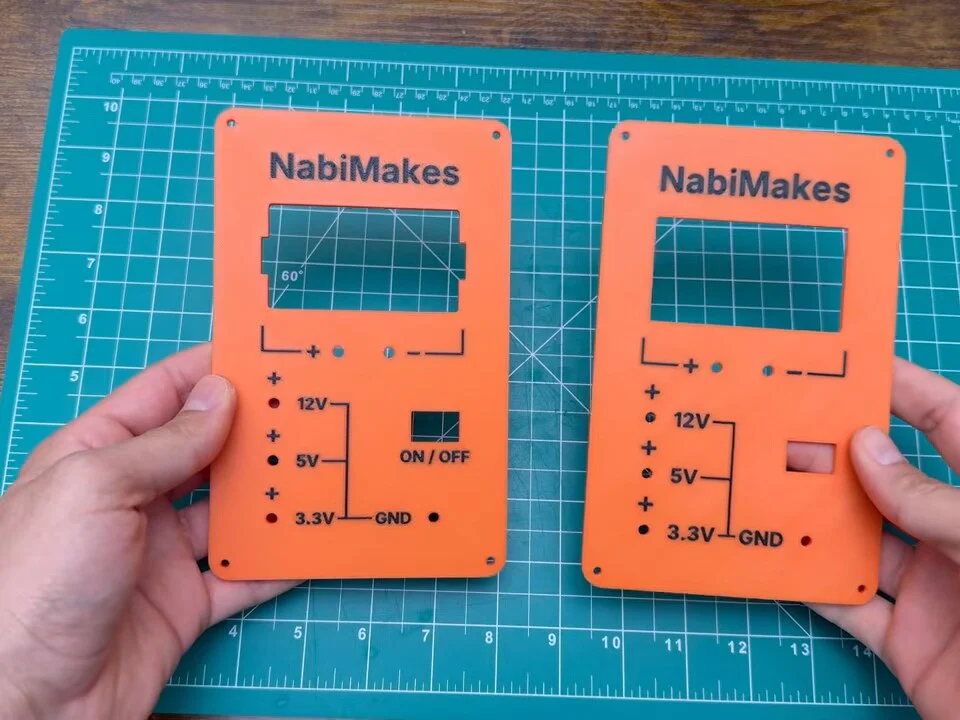
Fig. 22 -
Step 23: Fit the module
In goes the module. Nice and snug.
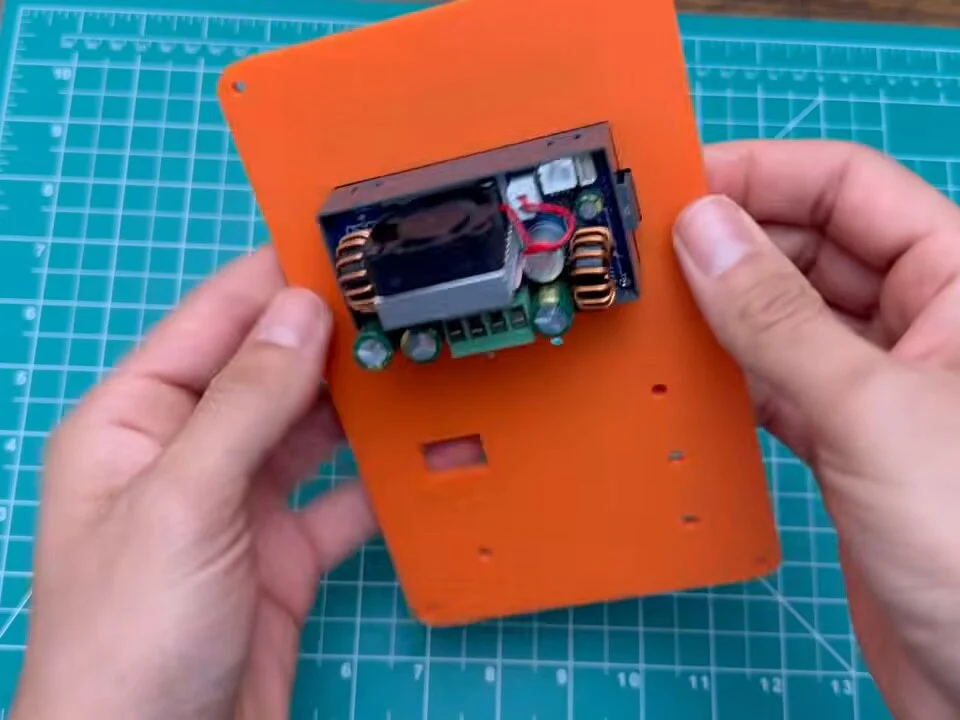
Fig. 23 -
Step 24: Add the switch and the jacks
Then the switch and the banana jacks. The labels, 12 volts, 5, 3.3, ground and the variable output, are all printed right in. Front panel done.
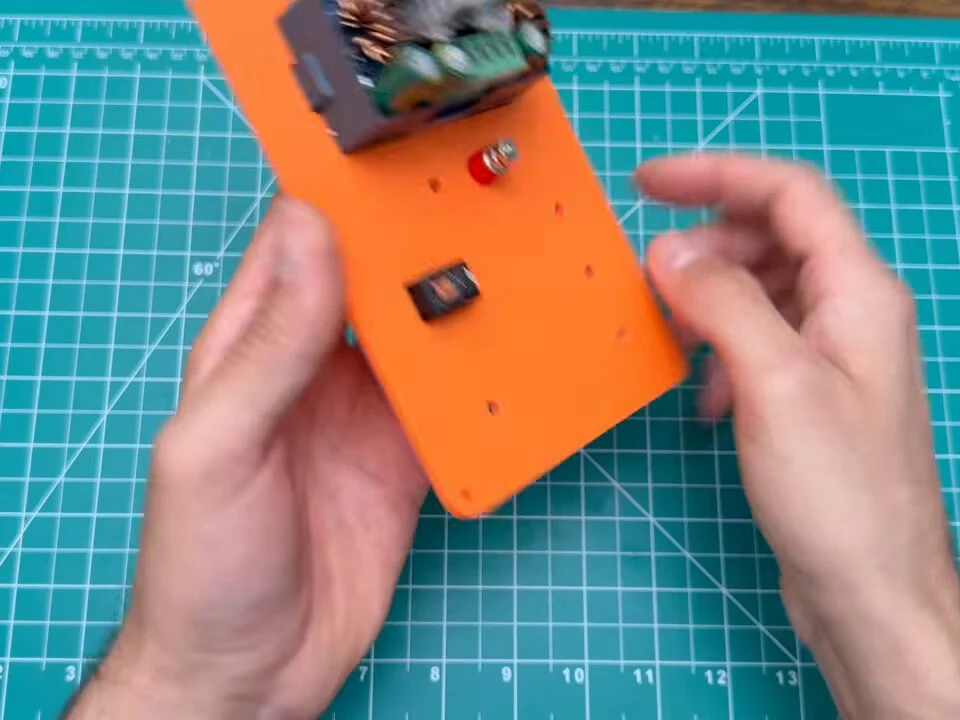
Fig. 24 -
Step 25: Melt in the brass inserts
Next, the frame. These brass heat-set inserts get melted into the plastic with a soldering iron, so the screws bite into metal, not plastic. Way stronger, and you can open and close the case as often as you like.
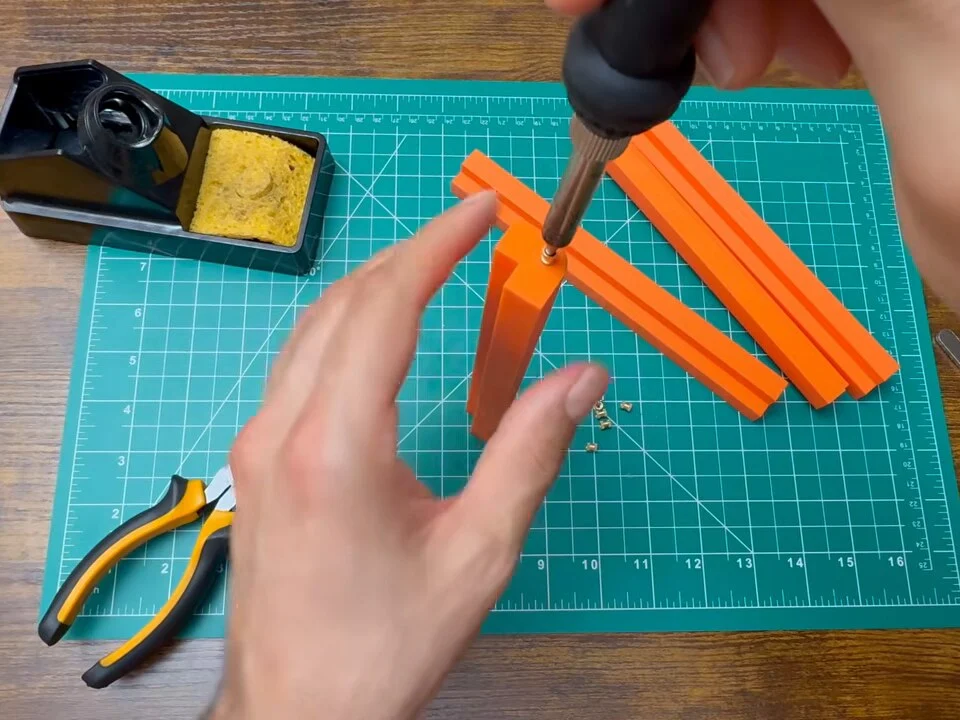
Fig. 25 Tip
Let the iron’s heat do the work and press gently. If you push hard, the insert goes in crooked and the plastic bulges around it.
-
Step 26: Slide the frame together
The frame parts slide together like a puzzle.
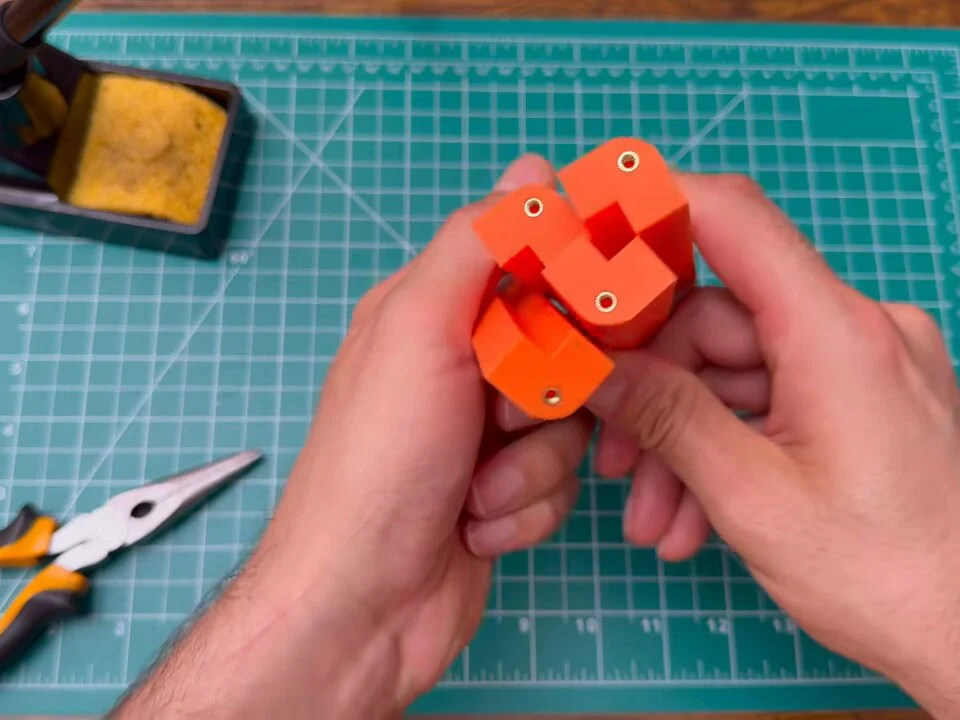
Fig. 26 -
Step 27: Salvaged screws
And these screws are salvaged from old printers I took apart. If you want to see where they came from, I took one apart in this printer teardown video.
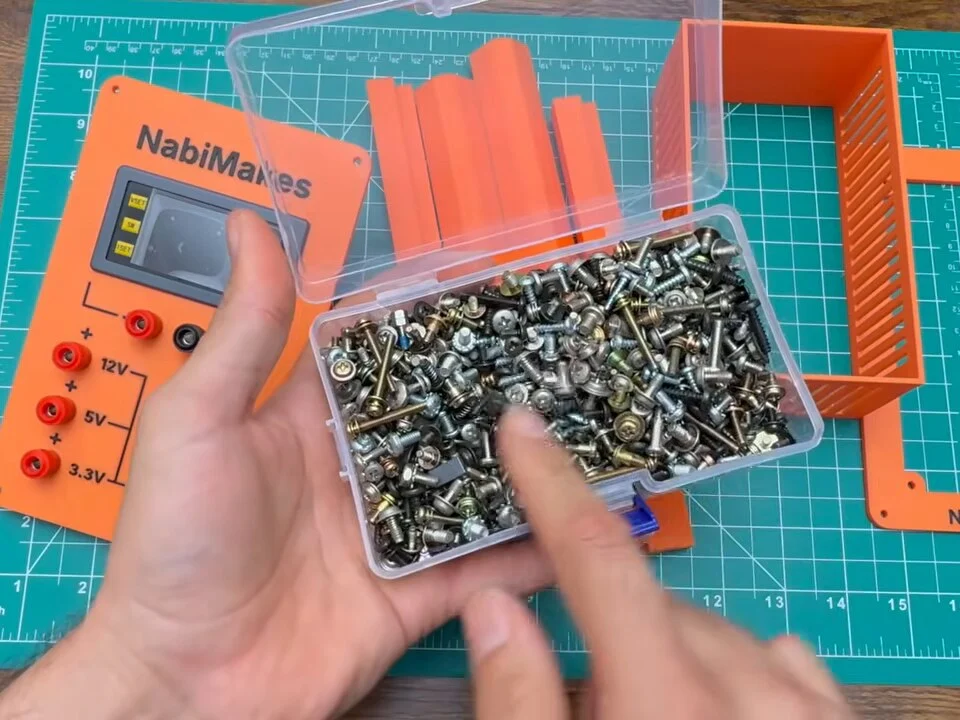
Fig. 27 -
Step 28: Screw the frame together
Every screw goes into a brass insert, tight and clean.
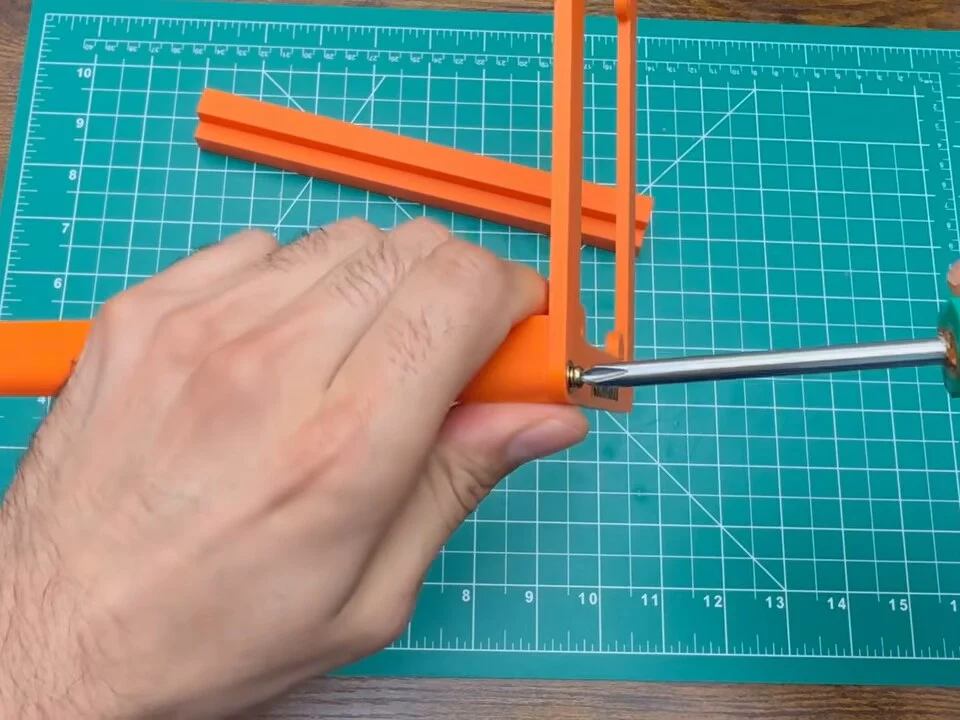
Fig. 28 -
Step 29: Fit the back bezel
The back bezel goes around the original power inlet and the switch on the back of the power supply.
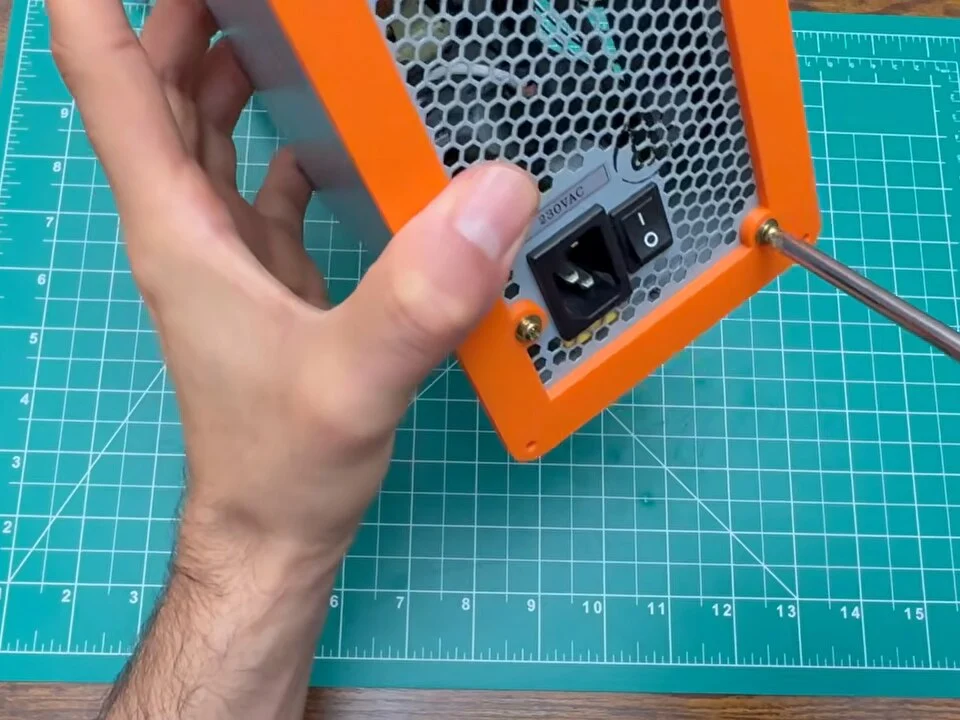
Fig. 29 -
Step 30: Back bezel done
The power supply stays exactly as it was. The printed parts just wrap around it.
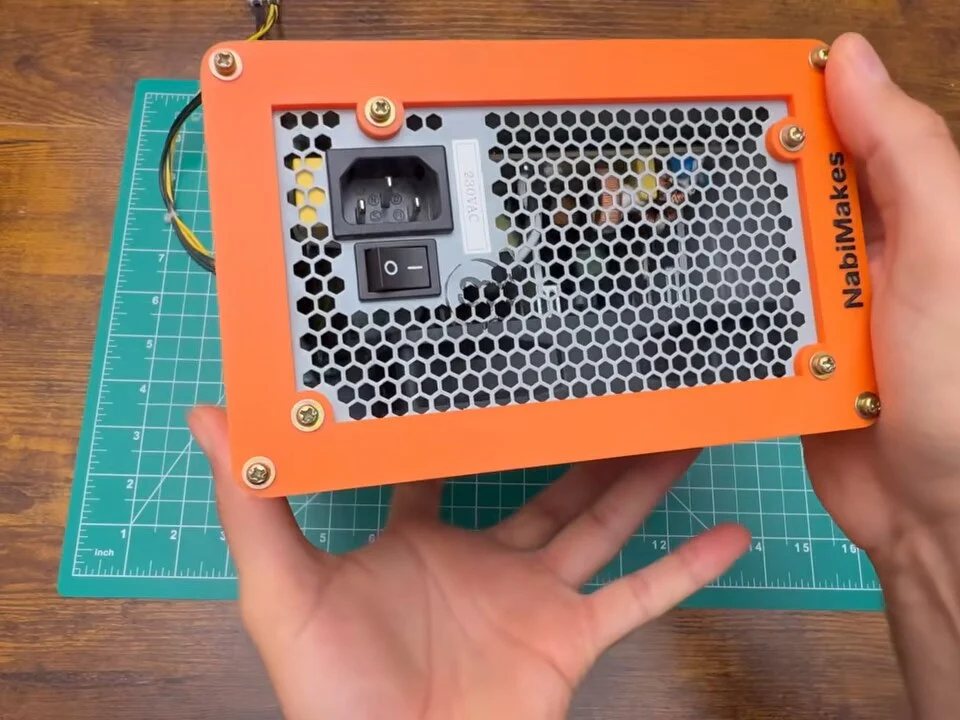
Fig. 30 -
Step 31: Wrap the frame around the PSU
The frame wraps around the original case. Perfect fit. Honestly, I'm a little surprised. This box holds all the wiring.
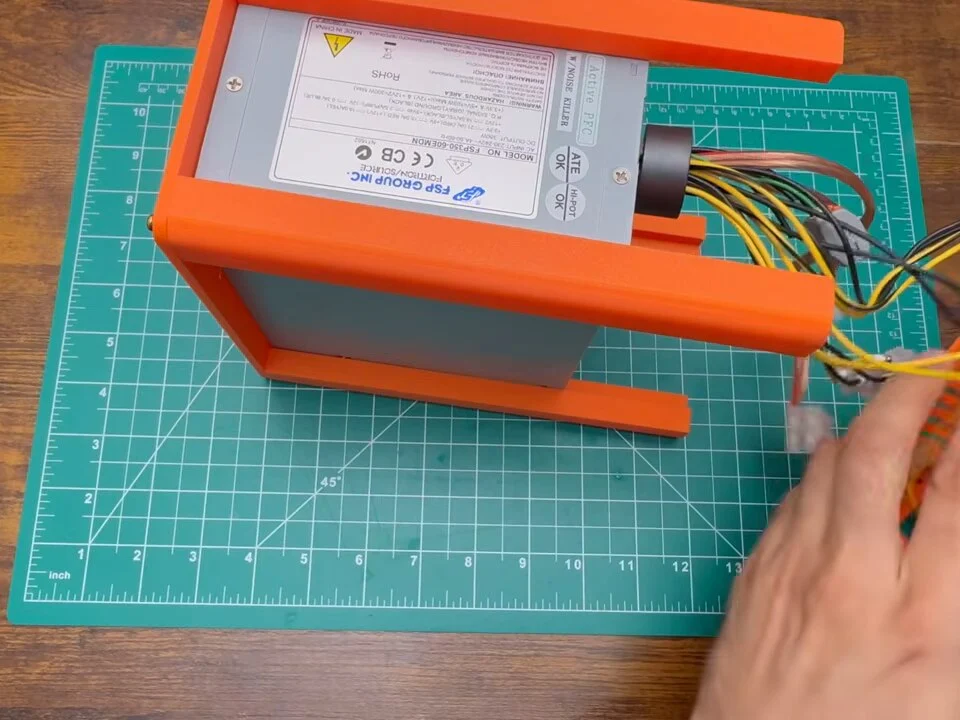
Fig. 31 -
Step 32: Wiring rules
Wiring time. Two rules: watch the polarity, and make every connection tight. Loose wires and power supplies are not friends.
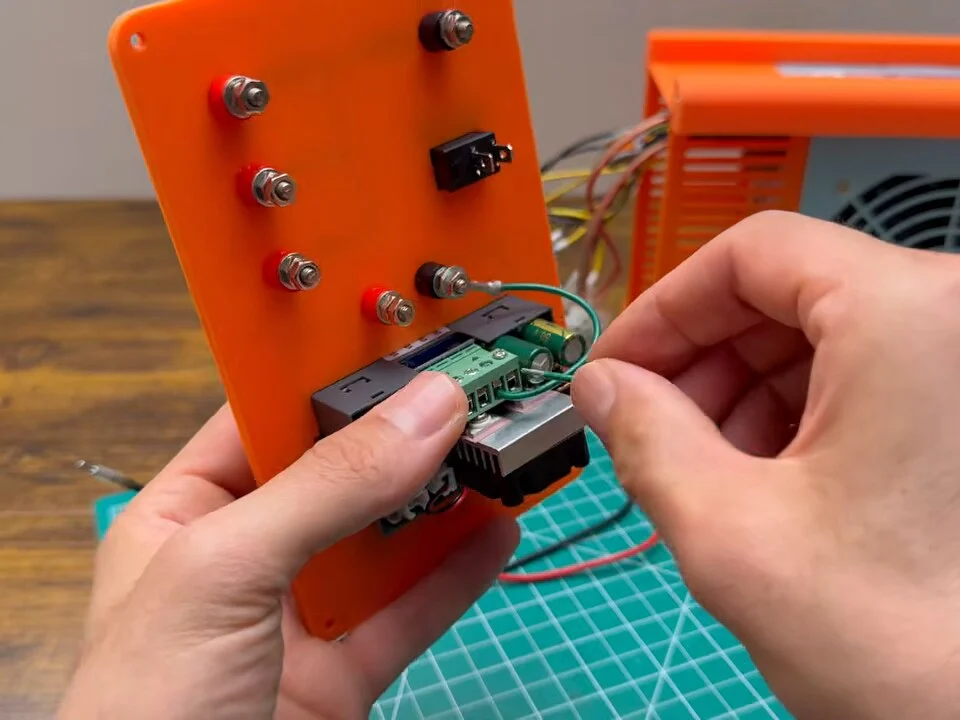
Fig. 32 Polarity
Red is plus, black is minus, every time. Check each wire against the label on the front before you power up.
-
Step 33: 12 V into the SK120
The 12 V from the power supply goes into the input of the SK120.
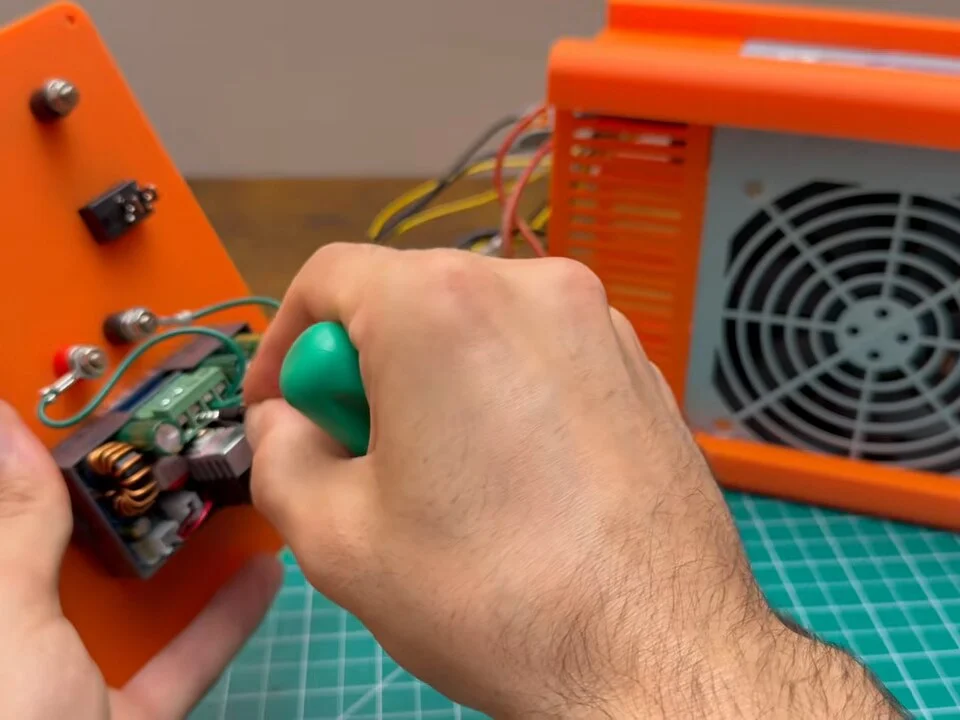
Fig. 33 -
Step 34: Module output to the variable jacks
And the output of the module goes to the variable jacks on the front.
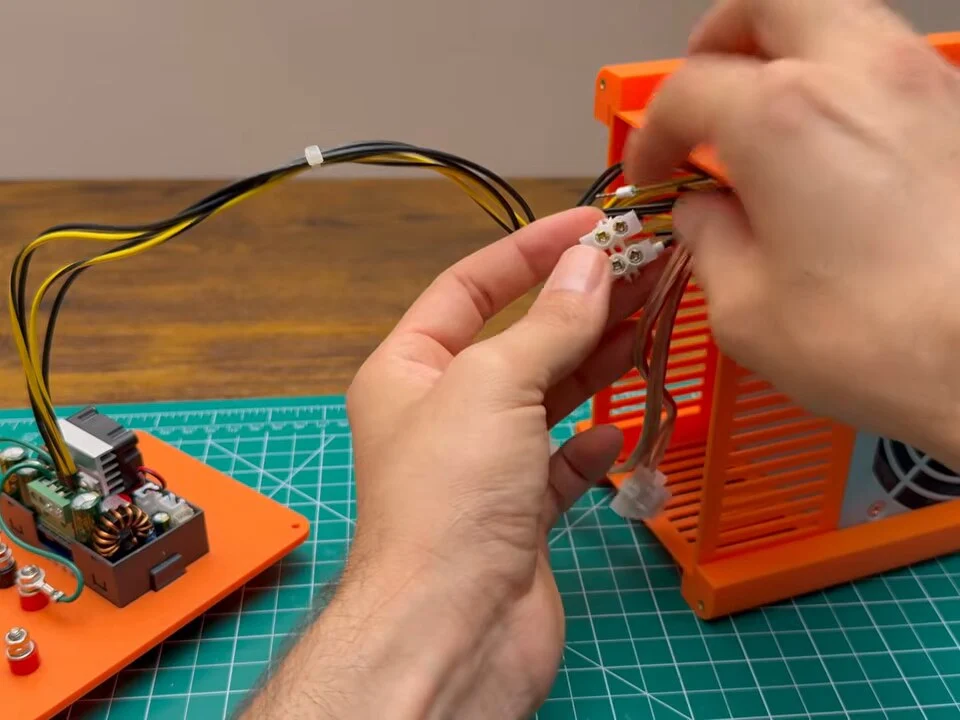
Fig. 34 -
Step 35: Fixed outputs, switch and ground
Then the fixed outputs, 12, 5 and 3.3 volts, plus the power switch and the ground wiring.
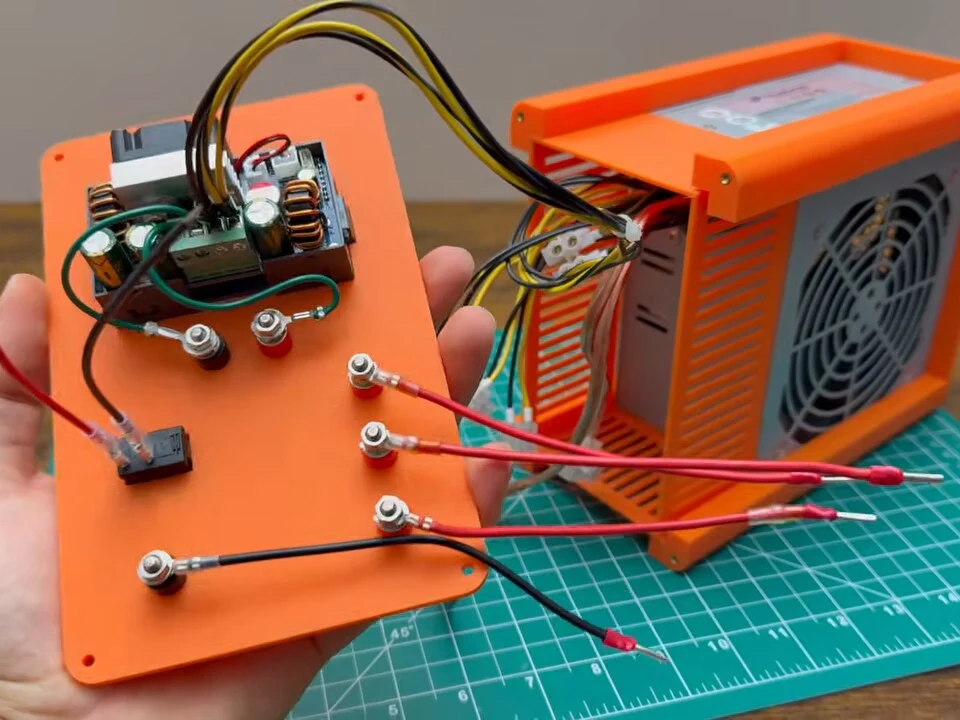
Fig. 35 -
Step 36: Join the wires at the terminal blocks
The wires from the front panel join the power supply's wires at screw terminal blocks.
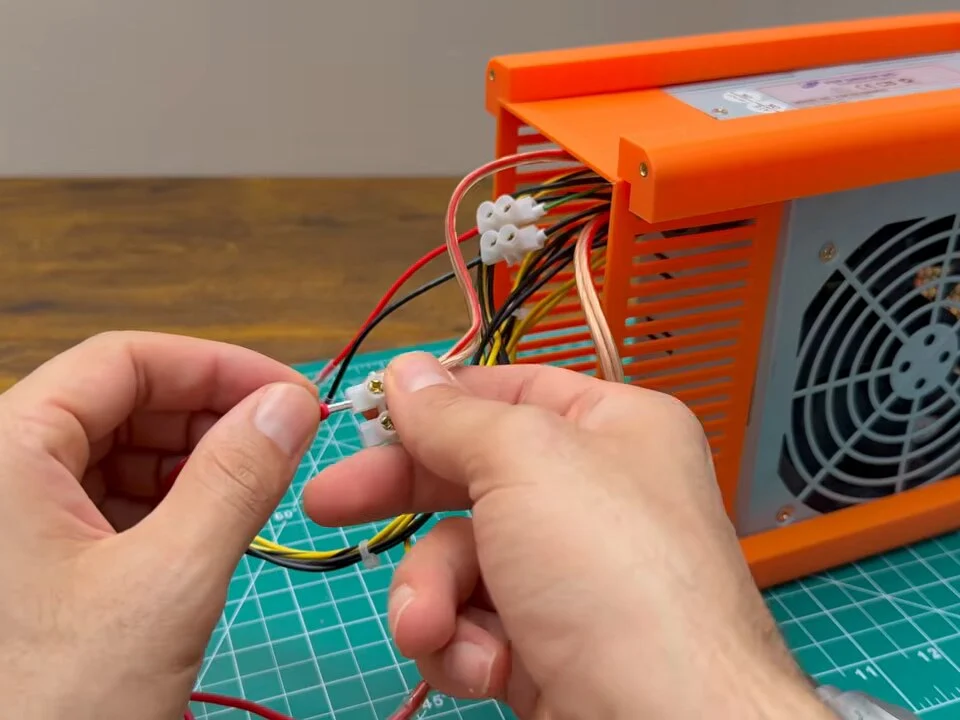
Fig. 36 -
Step 37: Way too many wires
And that is way too many wires. Nothing fits in there, so I cut everything again and rewired it shorter and cleaner.
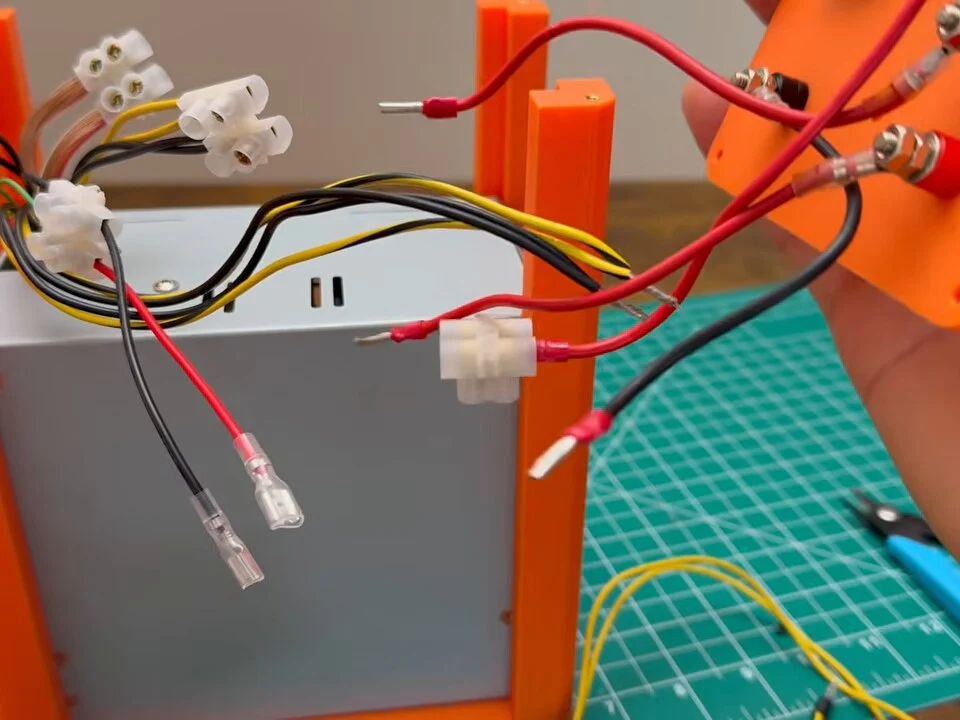
Fig. 37 Too long
My first wiring used long leads and the panel wouldn’t close. Cut every wire to the length it actually needs once the parts are in place.
-
Step 38: Close the front panel
Second try. Now the panel closes without a fight.
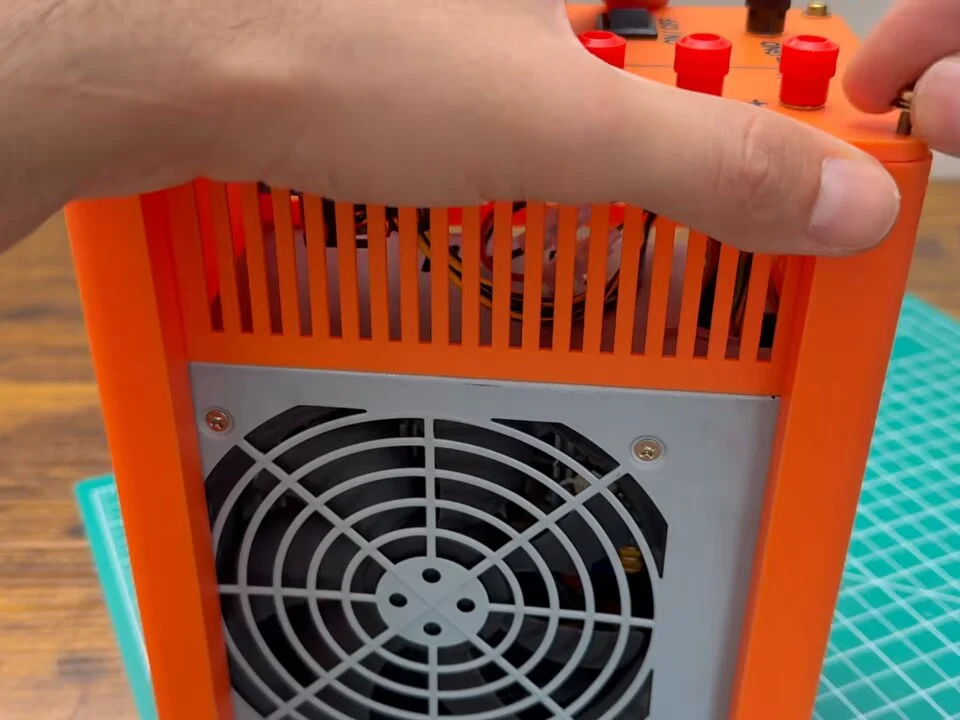
Fig. 38 -
Step 39: My own bench power supply
And here it is, my own bench power supply.
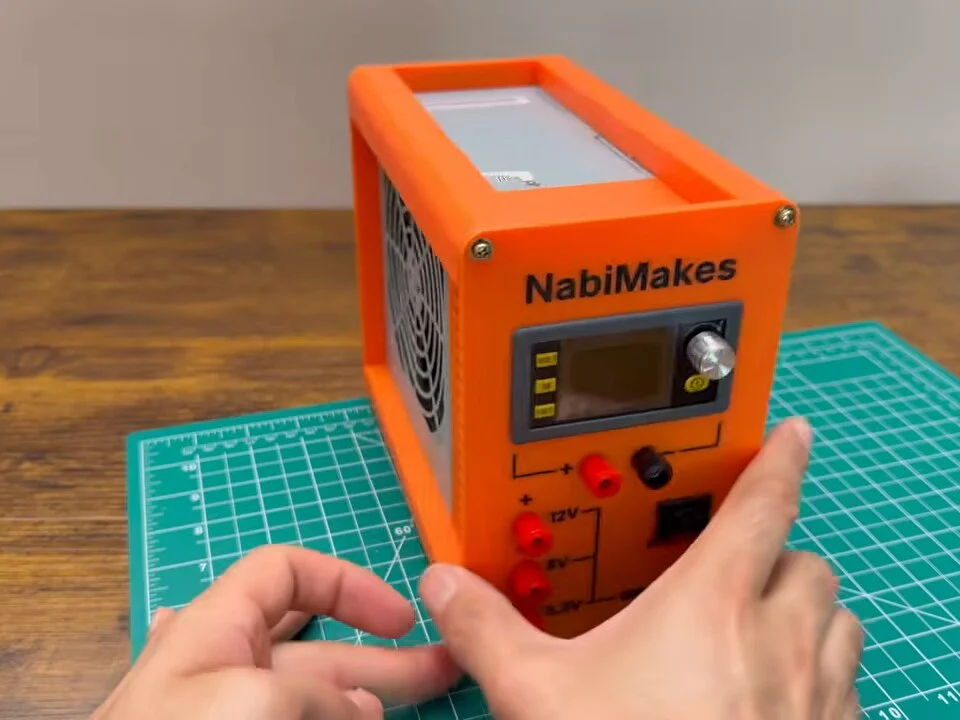
Fig. 39 -
Step 40: Power on
Okay: power cable in, switch on, and the screen lights up.
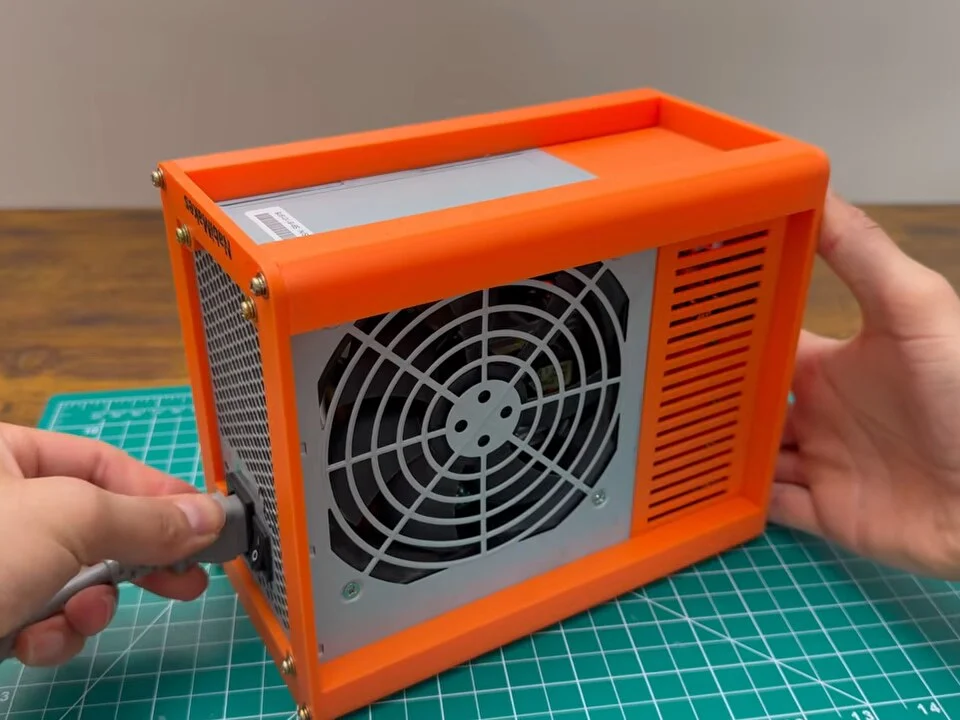
Fig. 40 -
Step 41: Check every output
Now let's check every output with the multimeter. 12 V rail, good. 5 V, good. 3.3 V, also good.
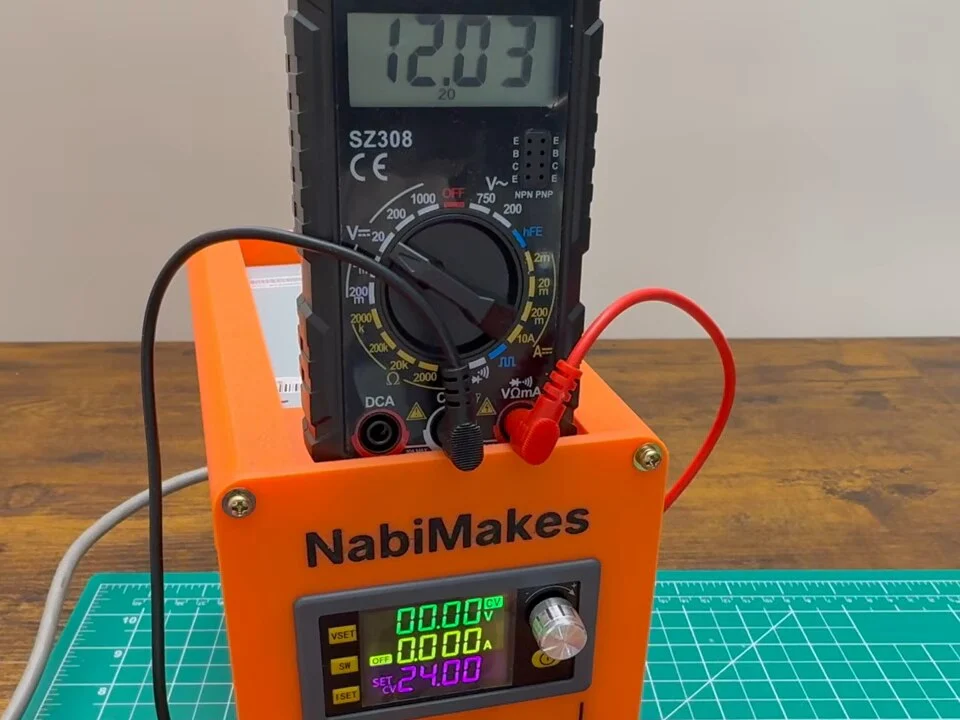
Fig. 41 -
Step 42: The variable output
And the variable output goes all the way up to 24 V and back down. Smooth.
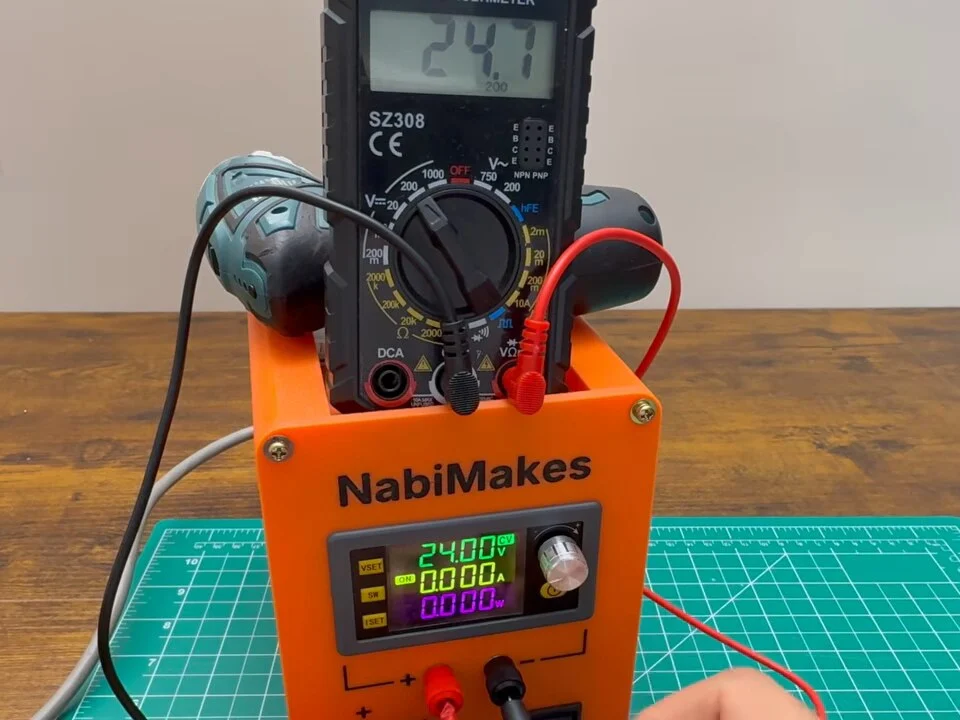
Fig. 42 Outputs
Fixed: 12 V, 5 V and 3.3 V. Variable: up to 24 V from the SK120, with an adjustable current limit.
-
Step 43: First test: a tiny LED
First test, a tiny LED. Start low and turn it up slowly, because LEDs don't like surprises. And there it is.
If you're new to LEDs, my Arduino LED tutorial covers the basics.
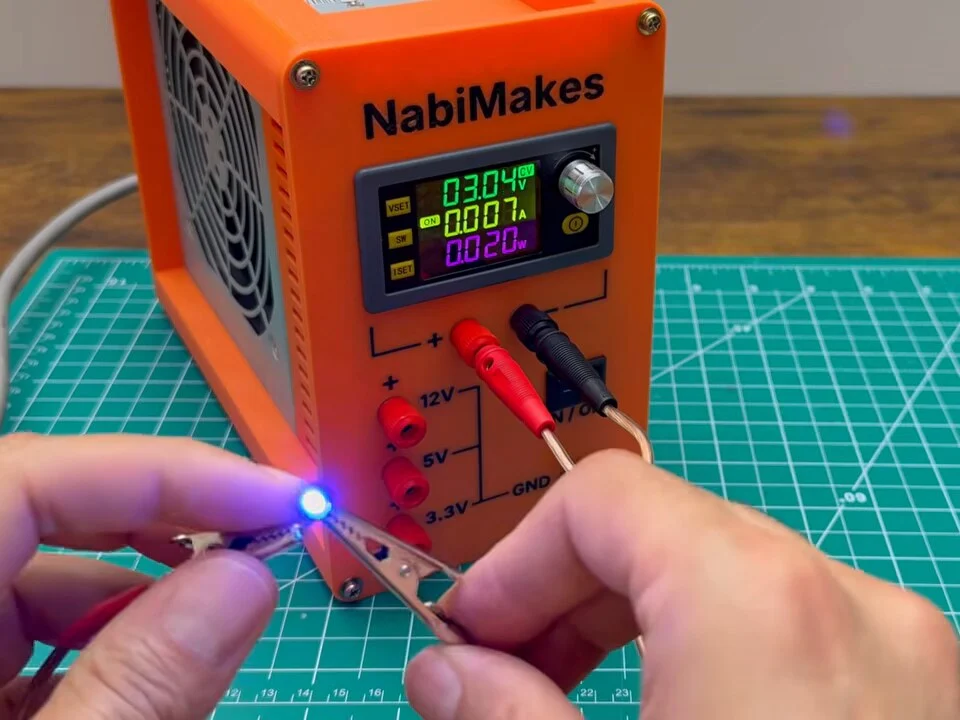
Fig. 43 Current limit
Set the current limit low before you connect an LED, then raise the voltage. The module holds the current where you set it, so the LED can’t run away.
-
Step 44: The LED cube
Now the LED cube from the beginning of the video. I turn up the current little by little. You can see it climb on the display, and the cube gets brighter and brighter.
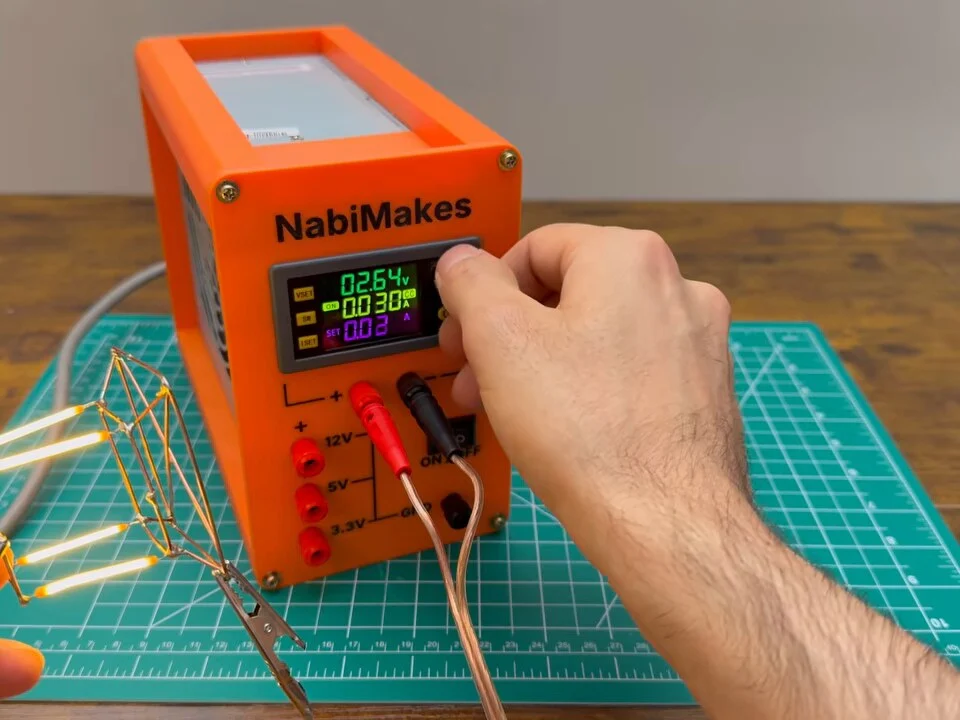
Fig. 44
Problems & mistakes
Three things went wrong. My old 3D printer died while printing the first front panel, so I bought a new one. The first panel from the new printer didn't fit the module, so I reprinted just that piece. And my first wiring was way too long to fit behind the panel, so I cut everything again and rewired it shorter.
None of it was a disaster. Because each piece downloads on its own, the reprint was just the front panel.
Mains voltage
A PC power supply runs on mains voltage and stores a dangerous charge in its capacitors. Keep the original metal case closed around the board, unplug it before working on it, and if you’re not sure how to wire it, ask someone who is. You build this at your own risk.
Final result
From a dusty old PC power supply with modified wires to a bench power supply I actually enjoy using. It gives me 12 V, 5 V and 3.3 V on fixed jacks, and a variable output up to 24 V with a current limit, all in an orange printed case with my name on the front. No more hunting for power supplies.
It cost about €25, mostly the SK120 module and the small parts, and took about a day, including the reprint and the rewiring.
If you want to build one, design your own case in PSU Enclosure Studio with the power supply and parts you have. And if you build one, show me in the comments under the video.
What I would change
I'd measure the module cut-out against the real module before printing the whole panel. A quick test print of just the cut-out would have saved a full reprint.
Next time I'd cut the wires to length from the start instead of wiring everything long and rewiring it.
PSU Enclosure Studio can also add USB chargers and a fuse holder to the front panel. A USB charging port would be a nice addition to the next version.